A .NET8 C# Application to Process Microsoft 365 Email Messages and Attachments
Introduction
Recently, I was asked how attachments from a Microsoft 365 mailbox could be automatically pushed into an Azure storage file share, so that the attachments can be made accessible to an onward process which needs to be executed on an Azure Virtual Machine. Whilst there are many ways this can be achieved; I decided to create a C# Console application to process the messages and attachments from Microsoft 365 mailbox inbox folder.
You can download this blob post as a PDF here.
Source Code
The source code for this solution can be found in my GitHub repo here.
Dependencies
There are several dependencies for this to work, these are described in the list below.
- A Microsoft Entra ID registered application, with the following delegated application permissions:
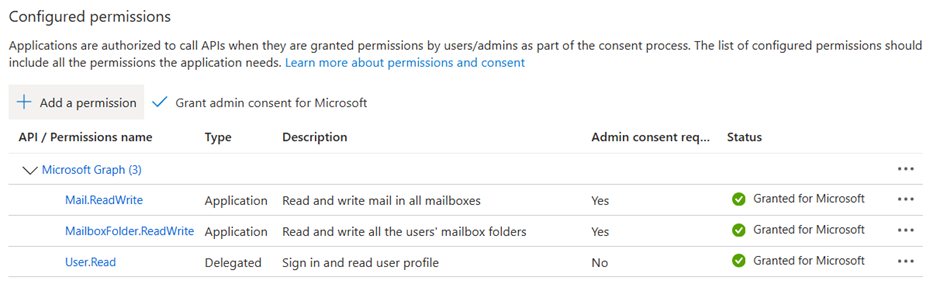
- An application secret (this can also be a certificate if needed)
- Install the Microsoft ExchangeOnlineManagement PowerShell tools
- Create a Microsoft Exchange Online application policy to allow the application access to the mailbox
# Connect to Exchange Online
Connect-ExchangeOnline -UserPrincipalName [Your Exchange Online Admin UPN] [-ShowBanner:$false]
# Create the app policy
New-ApplicationAccessPolicy -AppId [Your application ID] -PolicyScopeGroupId [Full email address of the mailbox] -AccessRight RestrictAccess -Description “Restrict the Mailbox Processor app..”
- Create an Azure storage account
- Create an Azure storage account file share
Nuget Packages
The following Nuget packages are a dependency as defined in the project settings.
<ItemGroup>
<PackageReference Include=”Azure.Core” Version=”1.44.1″ />
<PackageReference Include=”Azure.Identity” Version=”1.13.1″ />
<PackageReference Include=”Azure.Storage.Files.Shares” Version=”12.21.0″ />
<PackageReference Include=”Microsoft.Extensions.Configuration.Binder” Version=”9.0.0″ />
<PackageReference Include=”Microsoft.Extensions.Configuration.Json” Version=”9.0.0″ />
<PackageReference Include=”Microsoft.Graph” Version=”5.63.0″ />
<PackageReference Include=”Microsoft.Graph.Core” Version=”3.2.1″ />
<PackageReference Include=”Microsoft.Identity.Client” Version=”4.66.2″ />
</ItemGroup>
Mailbox Processor Application
The mailbox processor application consists of the following C# Classes and an appsettings.json file.
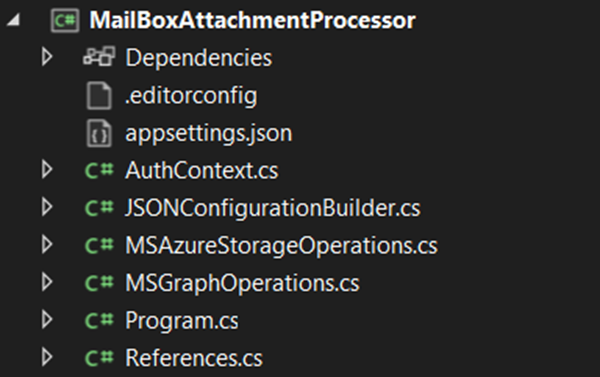
| File Name | Purpose |
| AuthContext.cs | A C# Class representing the authentication context for the application |
| JSONConfigurationBuilder.cs | A C# Class building the configuration from appsettings.json into the application context |
| MSAzureStorageOperations.cs | A C# Class with a method to stream the attachment to Azure Storage File Share |
| MSGraphOperations.cs | A C# Class with methods to work with the Microsoft Graph API e.g. read/move messages and attachments and folders |
| Program.cs | A C# program, the core of the application |
| Reference.cs | A C# Class to store the appsettings that are referenced by the application |
| Appsettings.json | The configuration settings for the application |
Application Settings
The application settings have been described below.
{
“AppSettings”: {
“MailFolderName”: “[The mailbox folder to target to read the messages]”,
“MailEmailAddress”: “[The mailbox email address]”,
“MailSubjectSearchString”: “[The subject search string for each mail message]”,
“ProcessedMessagesFolderName”: “[Process message mailbox folder name]”,
“AzureStorageConnectionString”: “[The Azure storage connection string] “,
“AzureStorageFileShareName”: “[Azure storage file share name]”,
“MSEntraApplicationClientId”: “[Microsoft Entra ID Application Id]”,
“MSEntraApplicationSecret”: “[Microsoft Entra ID Application Secret]”,
“MSEntraApplicationTenantId”: “[Microsoft Entra ID Tenant Id]”
}
}
Application Runtime Process
The application process is described below.
- The configuration is initialised
- The messages are retrieved from the defined mailbox folder name
- Each message is processed in the message collection and the emails with the matched string that are contained in the subject are processed
- A console output of the message ID, received date, received from, and subject is displayed
- Each attachment is processed and if the file is a file attachment, then the attachment is uploaded to the Azure file share specified in the Azure storage account connection string and file share name
- The number of messages processed, and the number of attachments processed is displayed in the output of the console
Sample Output
The mailbox has two messages with the subject containing the search string “course completions”.
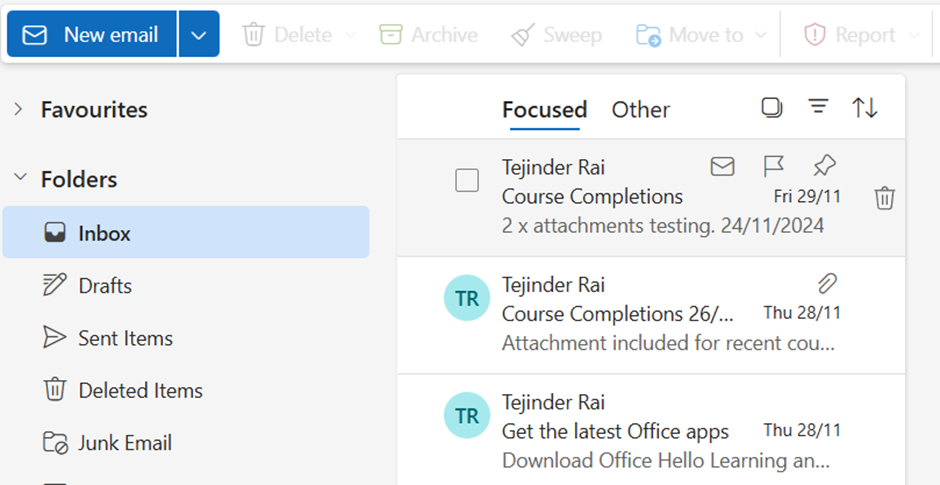
The mailbox attachment processor is executed, it displays the following output.
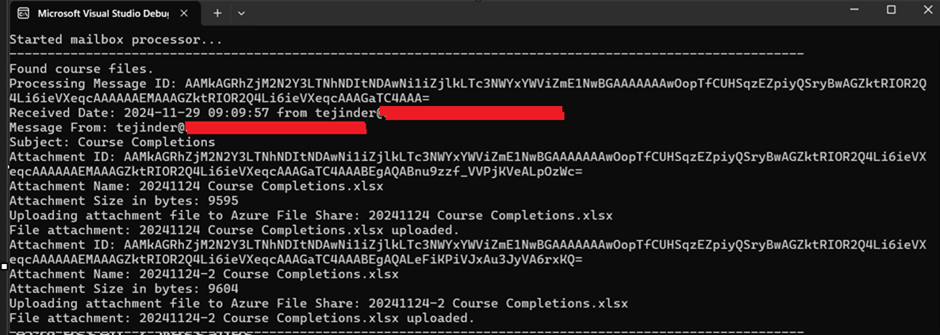
Two messages are processed, although three were seen in the previous email, but since the search string was not contained in the subject, only two messages were processed which were matched.
Two messages are processed, although three were seen in the previous email, but since the search string was not contained in the subject, only two messages were processed which were matched.
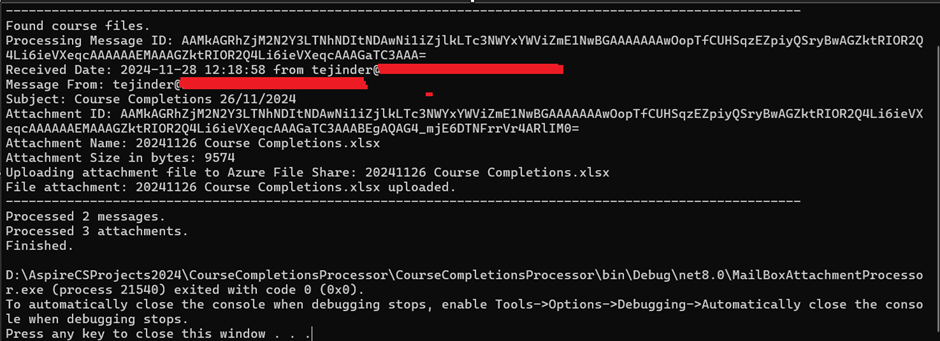
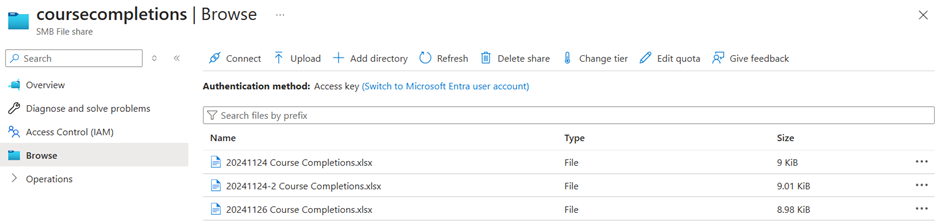
Three attachments in total were processed and uploaded to an Azure storage file share.
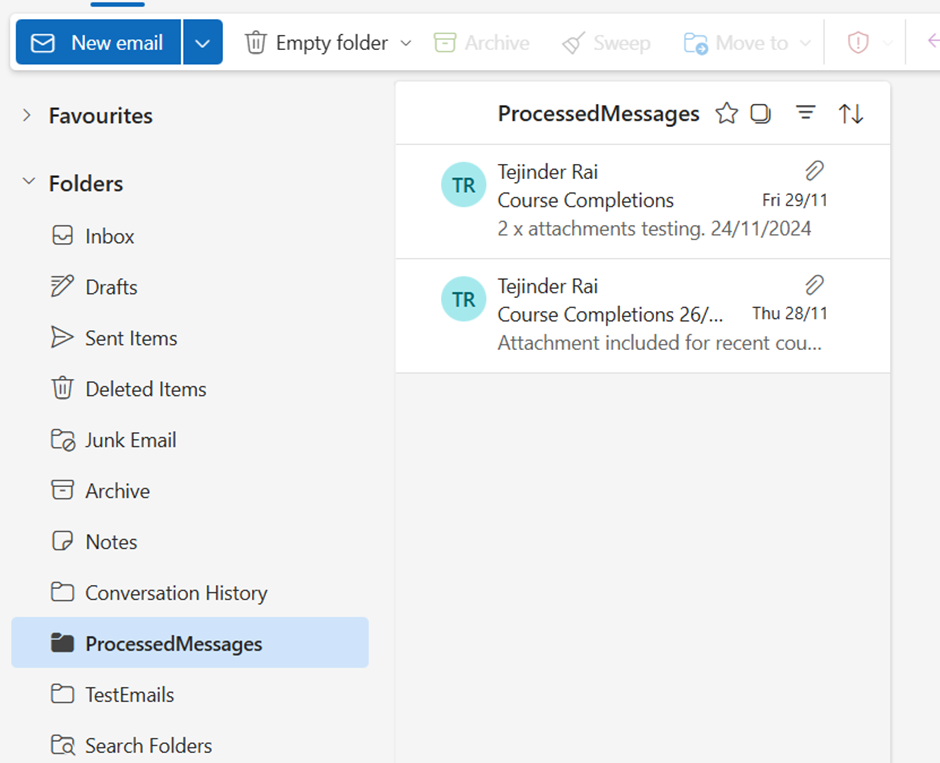
The email messages were moved to the ProcessedMessages folder, as defined in the application setting ProcessedMessagesFolderName.
When the application is executed again, the output is shown below as there are no longer any matched messages to process.

Closing Thoughts
From a development point of view, using this method provides a simple solution. Other considerations:
- Store the storage account key in Azure Key Vault
- Store the application secret (if used( in Azure Key Vault
- The Azure resource hosting the application e.g. Function App, can have a managed identity and RBAC access can be provided to Azure Key Vault for the service principal (Azure Key Vault access policies are now deprecated)
- Environment settings can be stored in the hosting environment configuration rather than in the appsettings.json file.
References

 Welcome to Tejinder Rai's blog, Cloud Solutions Architect