Azure Open AI Chat Audio Recoding Button
Welcome to the Blazor Simple AI Single Page App, Part 5 of the Microsoft AI services journey, which now includes an audio recording button in the Open AI Chat component.
This document explains the project in my GitHub repository which is available here: https://github.com/tejinderrai/public/tree/main/BlazorSimpleAI
If you would like to download the whole series of posts for the Blazor Simple AI Project, you can download the PDF here.
Visual Changes
The audio button has been added to the index.razor page as this is the main landing page. The audio button component is part of Radzen Blazor and simple to interact with which is the RadzenSpeechToTextButton. This utilises JavaScript as a component itself, there is an API to get user media.
For further information on the Razden Blazor Speech To Text Button, see: Blazor SpeechToTextButton Component | Free UI Components by Radzen.
Landing Page
The new landing page has the audio button added next to the chat text box.

When you click on the audio button, the first instance will provide a prompt requesting access from the site to the devices microphone, then recording has started as shown below.

When you are finished speaking, you click the button to stop recording and the text is submitted to the Question string and a OnChange event occurs and the Question value is set, then the state is changed for the component. Since the Question string is a bound field to the child component, AzureOpenAIChat, which then executes the component code to call the Microsoft Azure Open AI service with the text that was bound to the Question string.
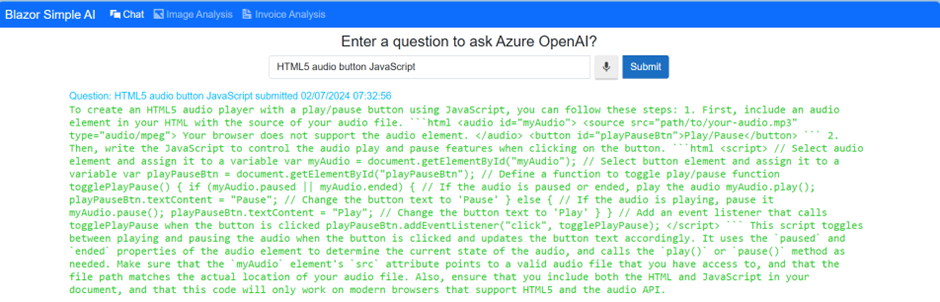
An example of the recorded audio text and Azure Open AI response is shown below.
Code Changes
The following code changes were made in index.razor.
Added audio recoding button and spacing.
<Radzen.Blazor.RadzenSpeechToTextButton class="padding-right:10px;" Change="@(args => OnSpeechCaptured(args, "SpeechToTextButton"))" />
<div style="padding-left:10px;" />
Added the OnSpeechCaptured method.
Note: I removed the question marks and period from the string return from the Radzen Speech To Text button as the characters were automatically to the returned text string value from the component.
private void OnSpeechCaptured(string speechValue, string name)

{

    speechValue = speechValue.Trim(new Char[] { '.', '?' });

    RecordedSpeech = speechValue;

    Question = RecordedSpeech;

    this.StateHasChanged();

}
For my next post, I will be utilising the RadzenSpeechToTextButton for a different purpose in the Blazor Simple AI project.

 Welcome to Tejinder Rai's blog, Cloud Solutions Architect