Welcome to the Blazor Simple AI Single Page App, Part 6 of the Microsoft AI services journey, which now includes Microsoft Azure Open AI image generation.
To download the project documentation, you can download a PDF here.
Since part 5, the following changes to the project have been implemented.
Project Changes
ImageGen.razor page has been added to the project Pages folder. This is a page hosting the image generation component and necessary code
AzureOpenAIImageGeneration.razor component has been added to the project components folder which handles the user prompt, then displays the image viewer dialogue with the Azure Open AI generated image
ImageViewer.razor component has been added to the project components folder. This displays the image dialogue
The following configuration changes have been added to AppSettings.Json for the DALL-E deployment name
“AzureAIConfig”
{
“OpenAIDALLEEndpoint”: “[Your Azure Open AI endpoint which is hosting the DALL-E deployment]”,
“OpenAIKeyDALLECredential”: “[Your Azure Open AI key] “,
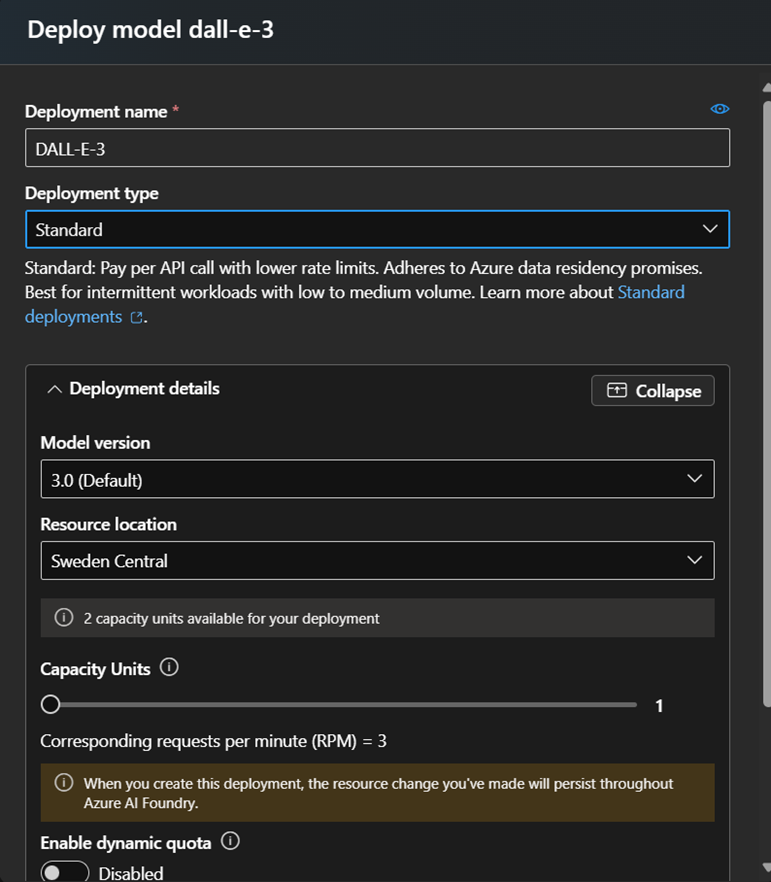
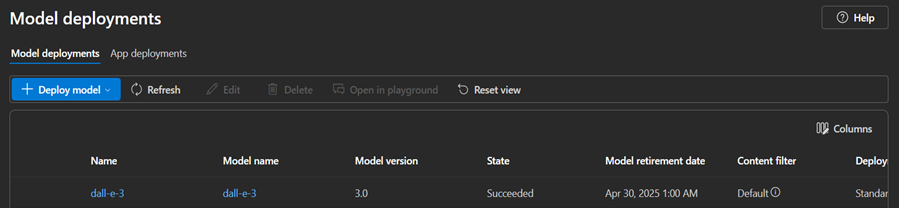
5) The following base model was added to the Open AI Service.
Components
ImageGen.razor (page)
The ImageGen.razor page is used to host the prompt for the user to generate the image. This is distinctively similar to the Open AI Chat index page, which follows a similar pattern to accept text prompts or audio recordings and then the text is passed to the child component, AzureOpenAIImageGeneration, to process the text and generate the image from the Azure Open AI service.
service.AzureOpenAIImageGeneration.razor
A component which accepts the text from the prompt and then calls the Azure Open AI service to generate the image.
ImageViewer.Razor
This component displays the output, the image, generated from the Azure Open AI service which is the template for the image dialogue box. This is called from the Image Generation child component.
The UI
I have added a Image Generation navigation link to the landing page.
Sample Questions and Responses
Question 1
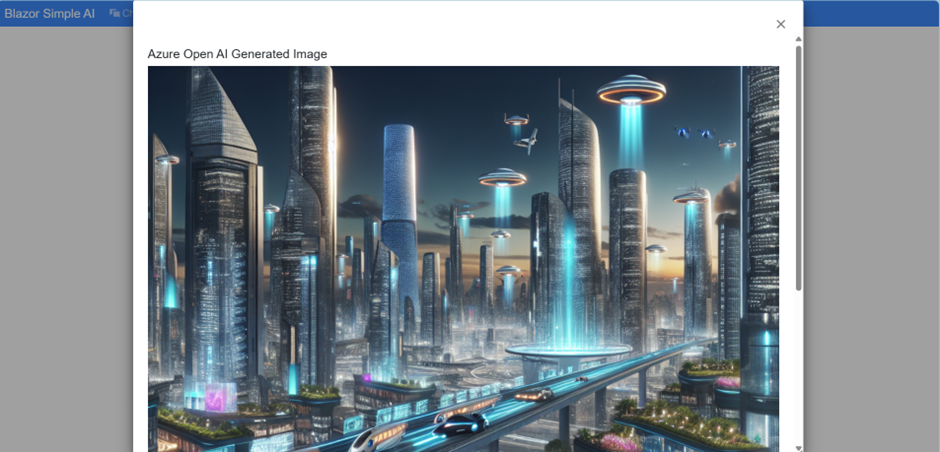
“Draw a futuristic city”
Output for question 1:
The process takes a few seconds for the image generation to complete, so I have displayed a spinning wheel and a prompt for the user to wait for the result.
The output is displayed as follows:
Question 2
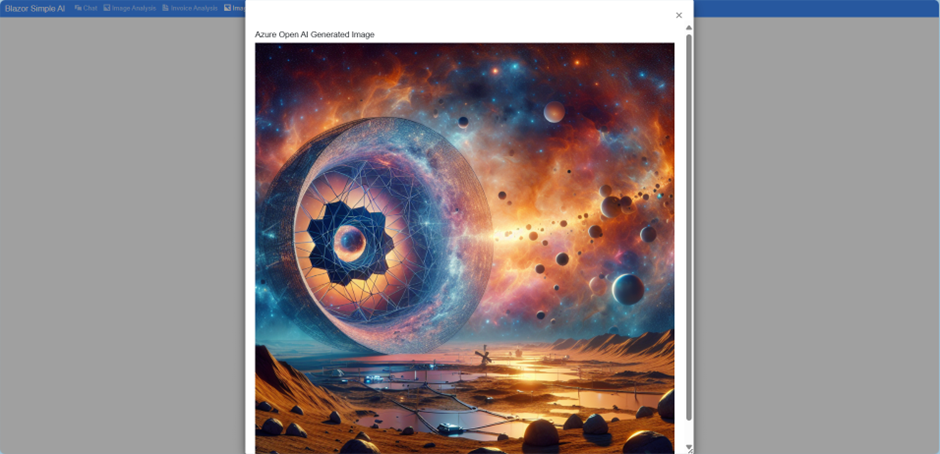
“Origins of the universe by the James Webb telescope”
The output is displayed as follows:
Question 3
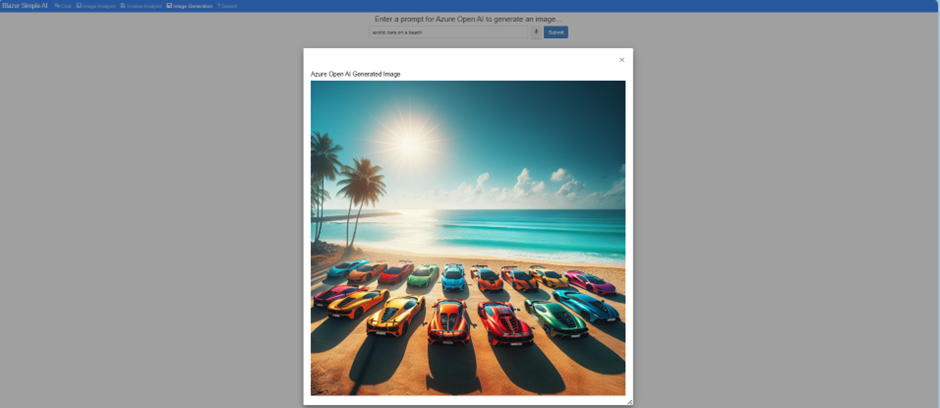
“exotic cars on a beach”
The output is displayed as follows:
That’s it!
This shows how simple it is to integrate a Blazor Web application with Azure Open AI image generation.
A .NET8 C# Application to Process Microsoft 365 Email Messages and Attachments
Introduction
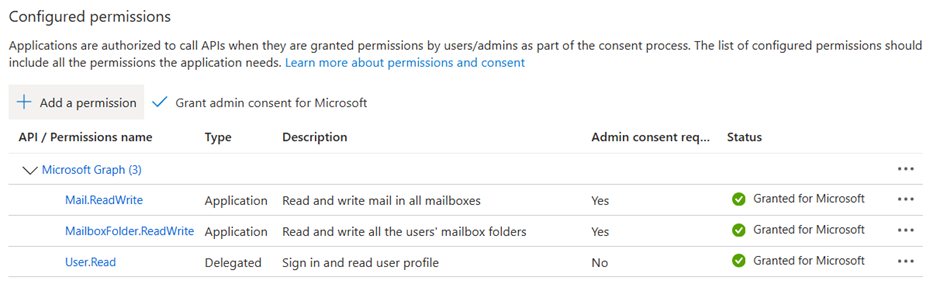
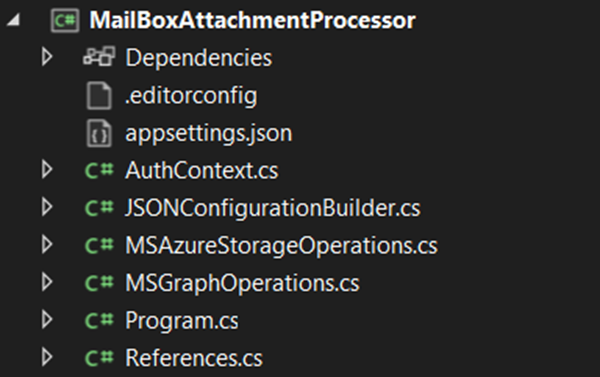
Recently, I was asked how attachments from a Microsoft 365 mailbox could be automatically pushed into an Azure storage file share, so that the attachments can be made accessible to an onward process which needs to be executed on an Azure Virtual Machine. Whilst there are many ways this can be achieved; I decided to create a C# Console application to process the messages and attachments from Microsoft 365 mailbox inbox folder.
“MSEntraApplicationClientId”: “[Microsoft Entra ID Application Id]”,
“MSEntraApplicationSecret”: “[Microsoft Entra ID Application Secret]”,
“MSEntraApplicationTenantId”: “[Microsoft Entra ID Tenant Id]”
}
}
Application Runtime Process
The application process is described below.
The configuration is initialised
The messages are retrieved from the defined mailbox folder name
Each message is processed in the message collection and the emails with the matched string that are contained in the subject are processed
A console output of the message ID, received date, received from, and subject is displayed
Each attachment is processed and if the file is a file attachment, then the attachment is uploaded to the Azure file share specified in the Azure storage account connection string and file share name
The number of messages processed, and the number of attachments processed is displayed in the output of the console
Sample Output
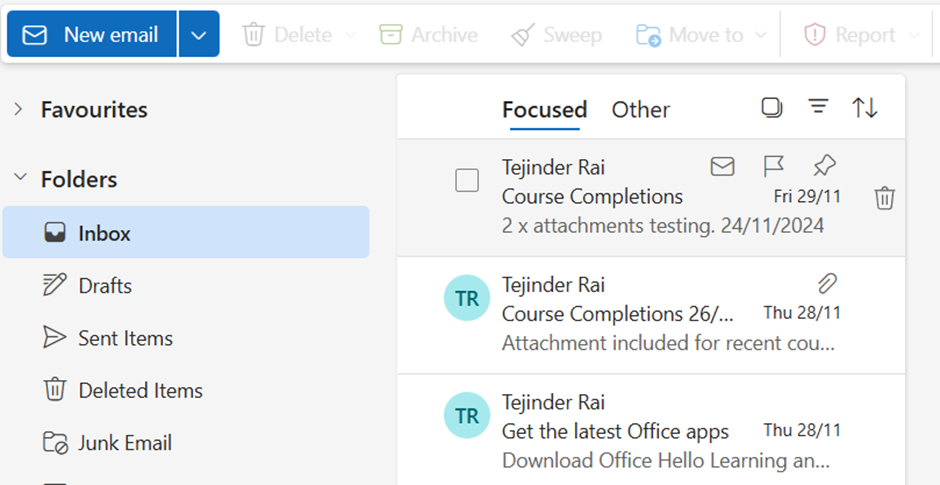
The mailbox has two messages with the subject containing the search string “course completions”.
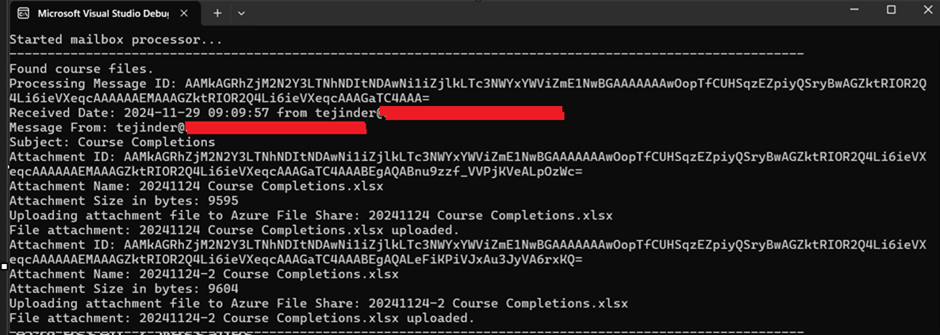
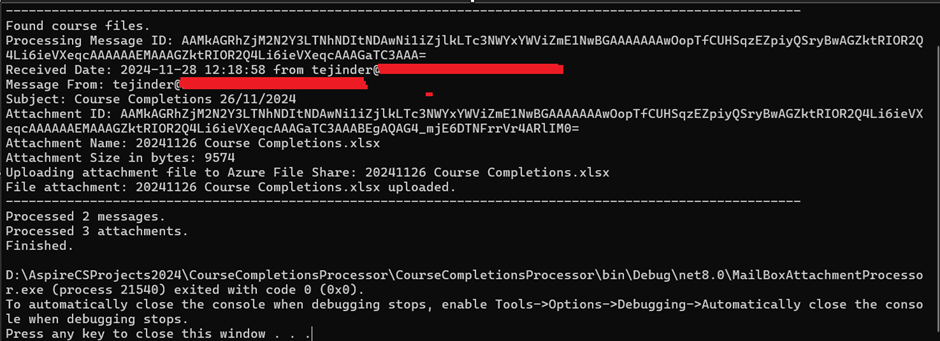
The mailbox attachment processor is executed, it displays the following output.
Two messages are processed, although three were seen in the previous email, but since the search string was not contained in the subject, only two messages were processed which were matched.
Two messages are processed, although three were seen in the previous email, but since the search string was not contained in the subject, only two messages were processed which were matched.
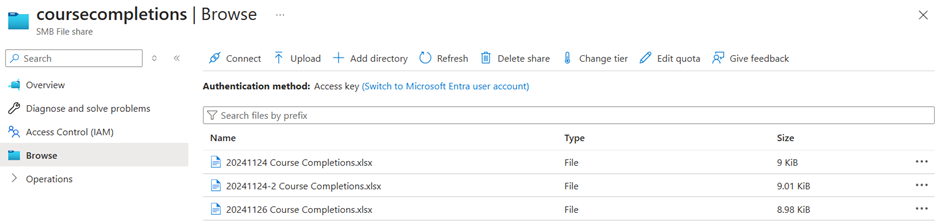
Three attachments in total were processed and uploaded to an Azure storage file share.
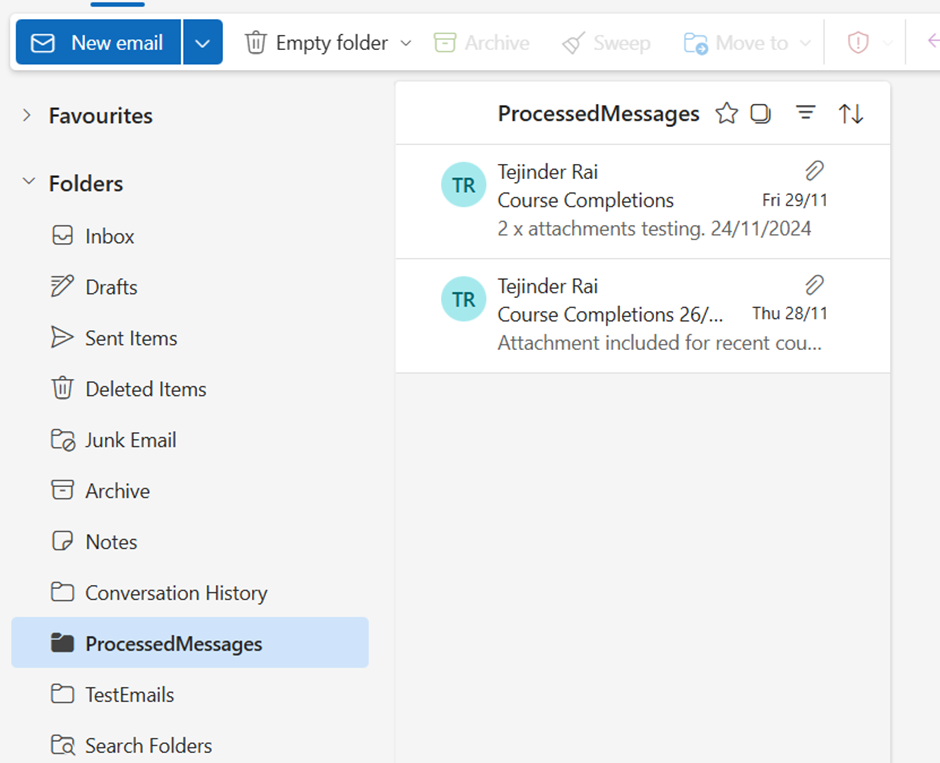
The email messages were moved to the ProcessedMessages folder, as defined in the application setting ProcessedMessagesFolderName.
When the application is executed again, the output is shown below as there are no longer any matched messages to process.
Closing Thoughts
From a development point of view, using this method provides a simple solution. Other considerations:
Store the storage account key in Azure Key Vault
Store the application secret (if used( in Azure Key Vault
The Azure resource hosting the application e.g. Function App, can have a managed identity and RBAC access can be provided to Azure Key Vault for the service principal (Azure Key Vault access policies are now deprecated)
Environment settings can be stored in the hosting environment configuration rather than in the appsettings.json file.
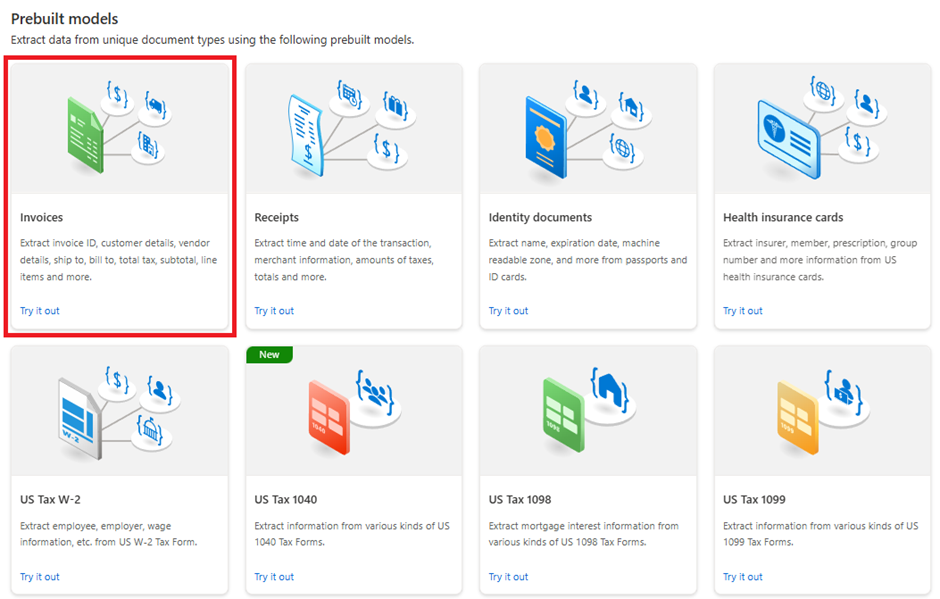
Welcome to the Blazor Simple AI Single Page App, Part 4 of the Microsoft AI services journey, which now includes invoice analysis which utilises Microsoft Azure AI Document Intelligence service. The document Intelligence service is used to extract the text from an invoice using a pre-built model. A sample of some of the models is shown below in document intelligence studio.
The invoice processed container is the output interface file that is generated from the text extracted from the original invoice file. It is an output of JSON which utilises the InvoiceAnalysisData data type.
Note: Whist this project utilises the service key, in an enterprise environment, you must consider using token based access to the service secured by Microsoft Entra ID, or if you wish to utilise the service key for any reason, utilise Azure Key Vault to protect the key used by the application with a managed identity for the application to access the service key stored in Azure Key Vault.
Components
Invoice Loader Component (InvoiceLoader.Razor)
The invoice upload component utilises Blazor InputFile for the user to select the file to upload in the application. The component reads the Azure Storage connection string from the configuration, including the container, then uploads the file to the container and also adds a blob http header for the file content type taken from the file properties. The Radzen notification service is used to notify the user of the application activities. I also included a basic spinner as part of the interaction for the upload process.
Invoice File List Component (InvoiceFileList.Razor)
This component reads the Azure Storage connection string from the configuration, including the container, then displays the invoice blob file names in a Radzen DataGrid. A button is added to view the invoice, or process the invoice, which then calls the Radzen notification service to display the activities being taken by the application.
Invoice Viewer Component (InvoiceViewer.Razor)
This component is a child component displayed in a Radzen dialog box which displays the original uploaded invoice directly from the Azure blob storage invoice upload container. A storage SAS key is generated which provides time limited access to the user in order for the invoice to be displayed in the dialog.
Data Classes
InvoiceAnalysisData.cs – The class for the invoice.
InvoiceItem.cs – The class for the invoice items.
Invoice Sample
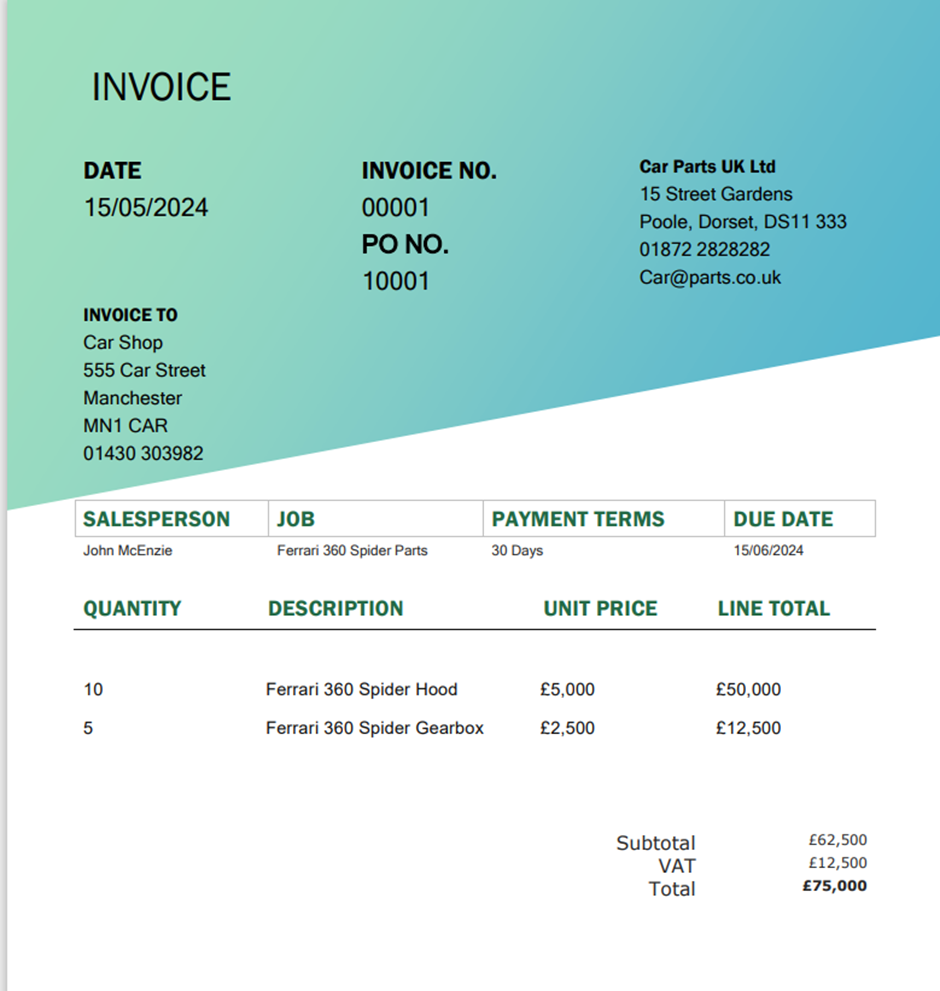
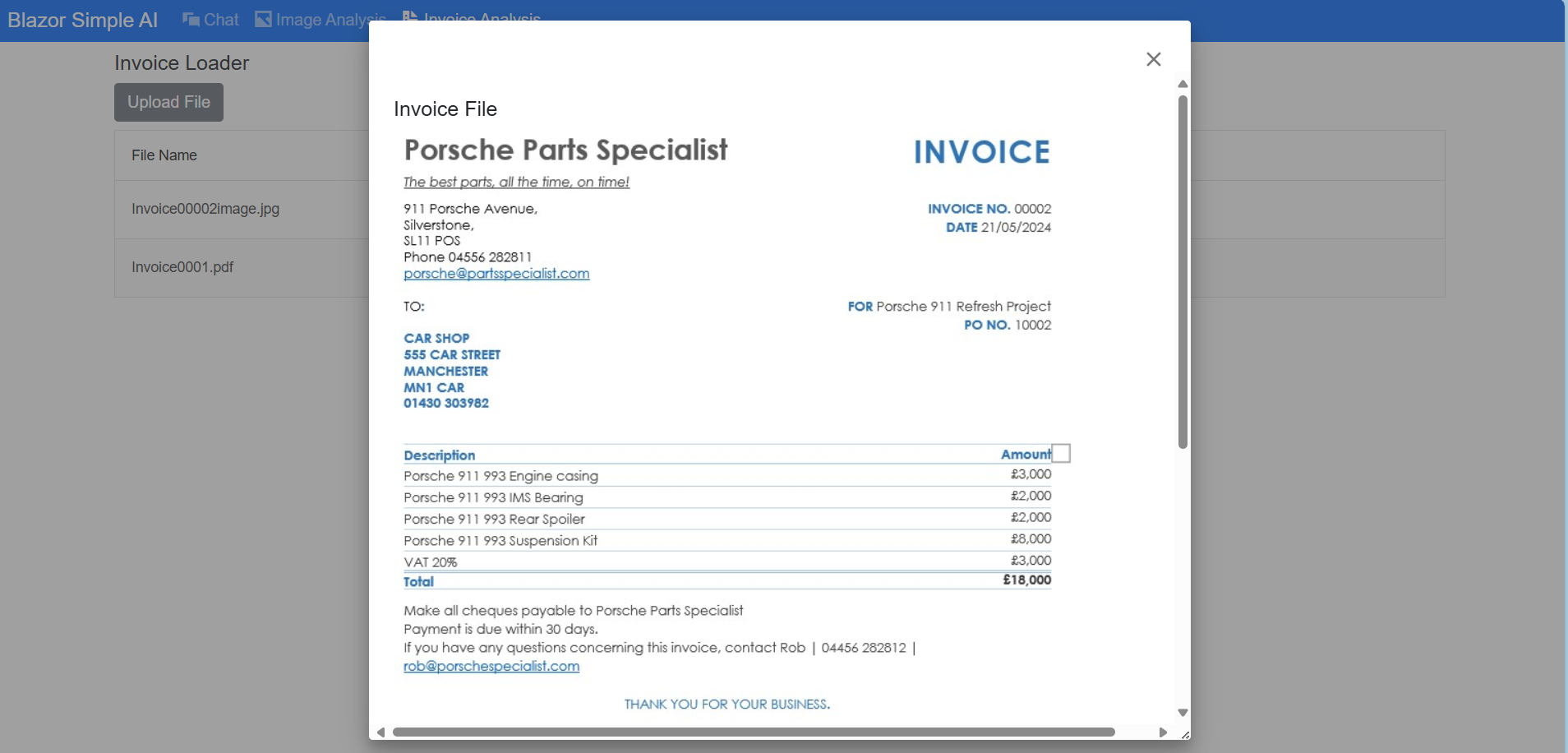
I have created an invoice samples to test the pre-built invoice model from Microsoft Azure Document Intelligence.
Supplier 1 Invoice (PDF)
I created two additional sample invoices, both of which were tested and successfully processed. I have not covered the upload of these in my blog post.
Supplier 2 – Jpeg image
(Missing Quantity)
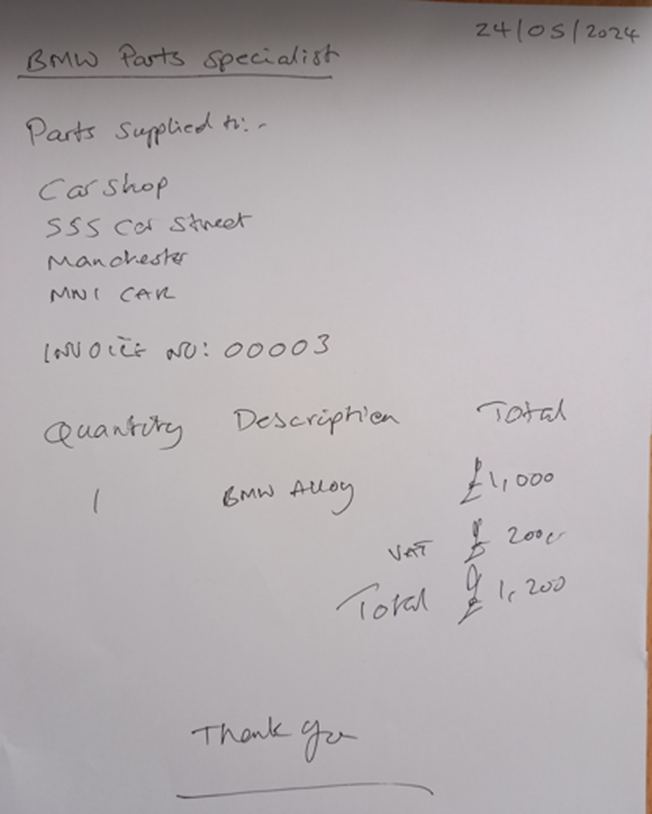
Invoice 3 – Handwritten Invoice – jpeg image
The UI
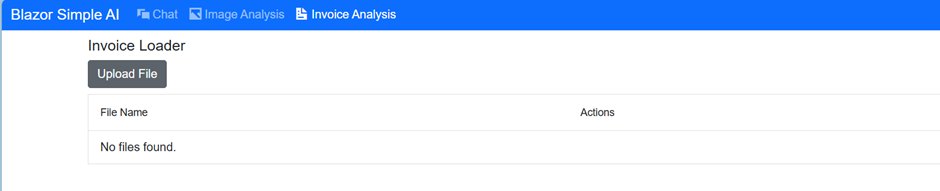
The UI for invoice analysis is as follows.
Invoice Analysis
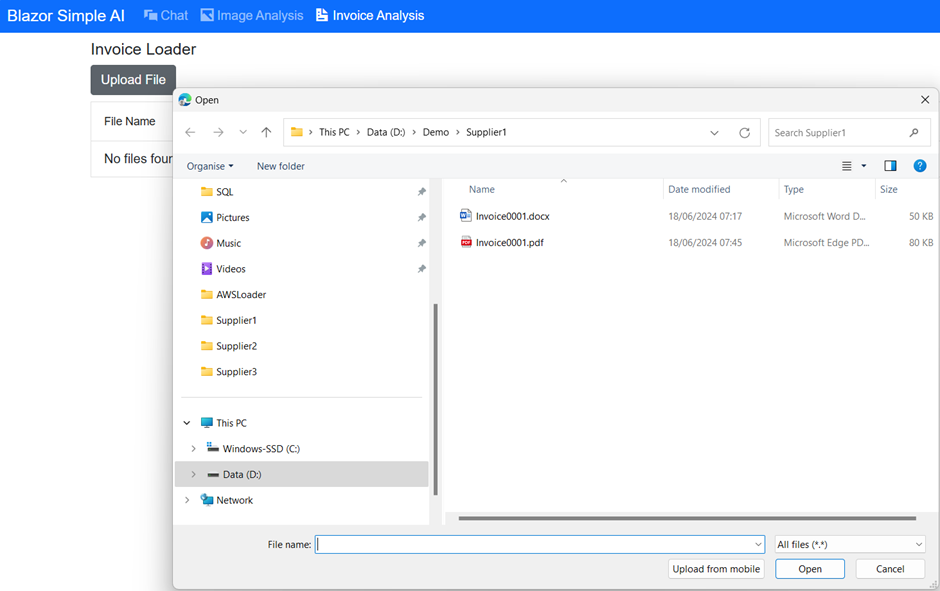
Upload File
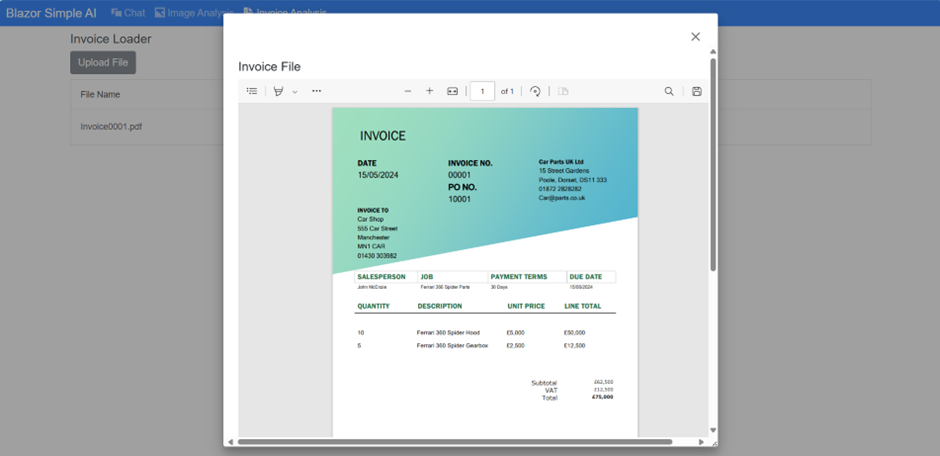
View Button – Opens the PDF in a dialog box
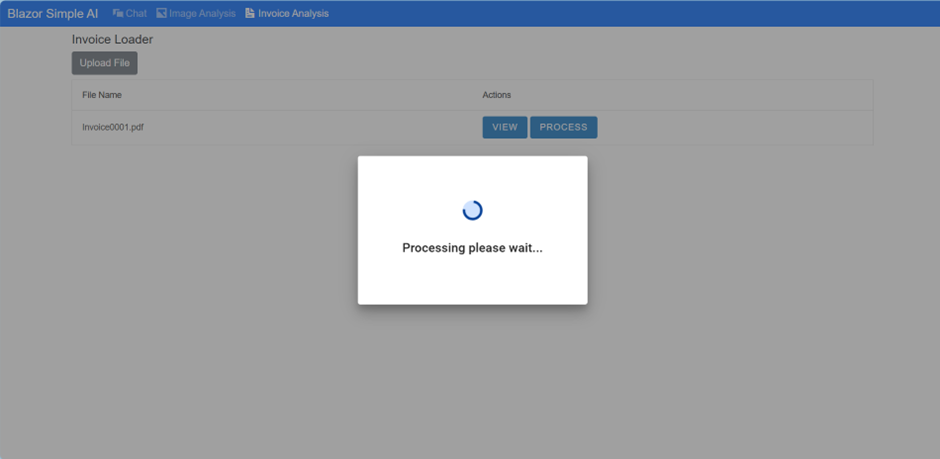
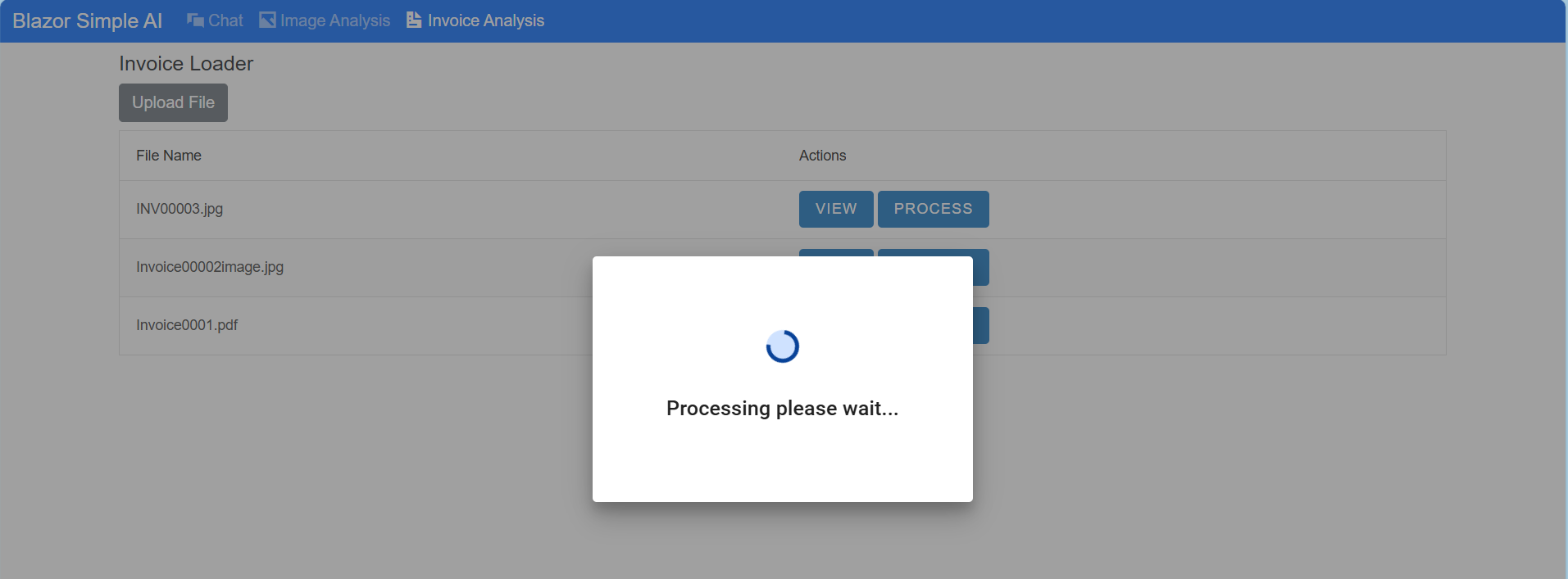
Process Button – Interactive Dialog box
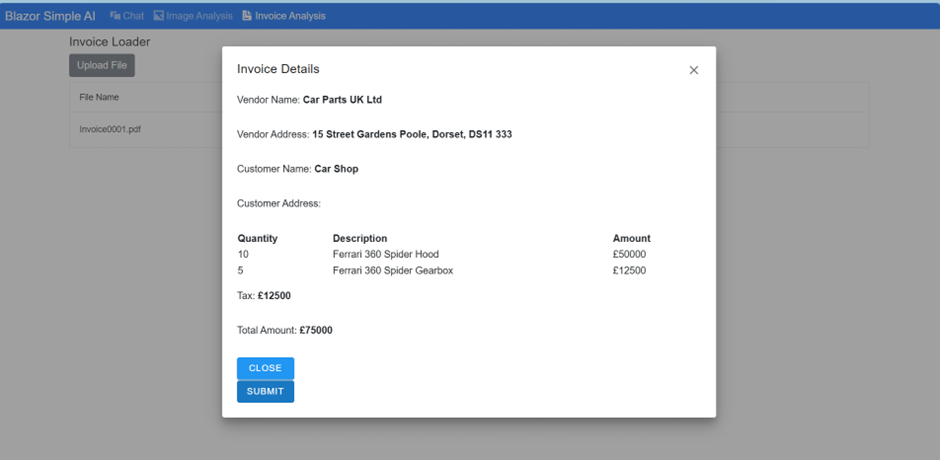
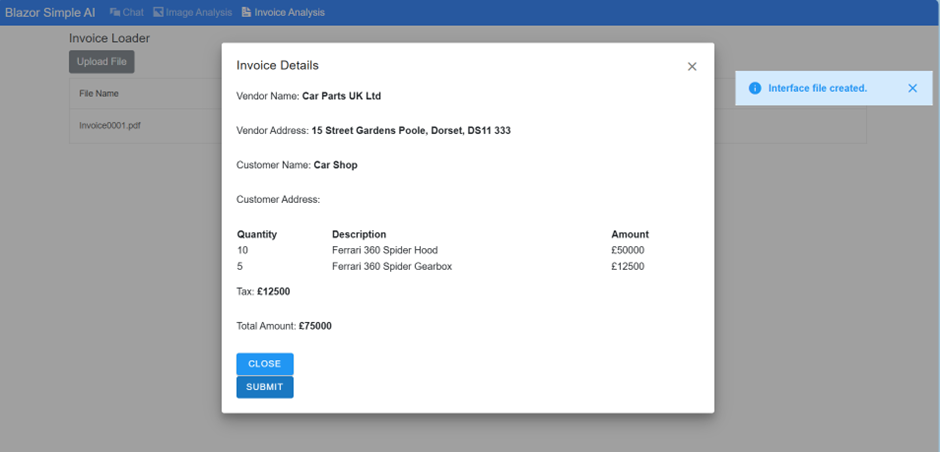
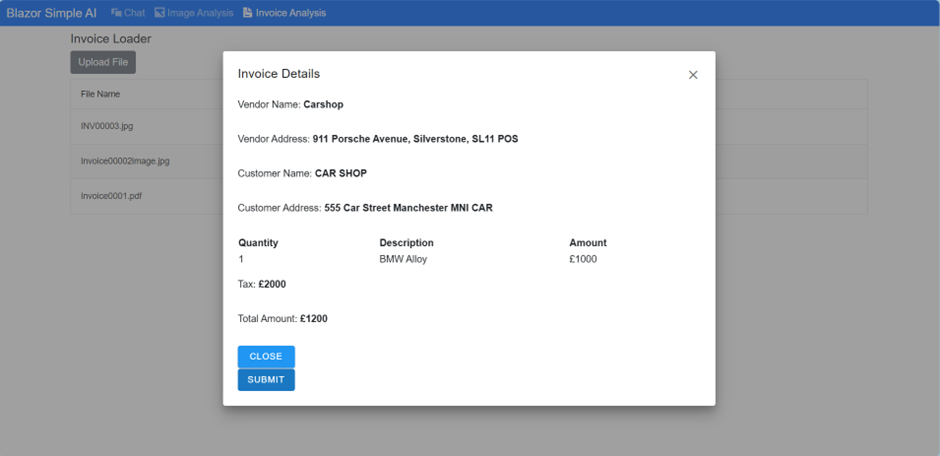
Processing Completed – Invoice details – text extracted into InvoiceAnalysis object.
Submit Button – Create an output interface file in JSON format.
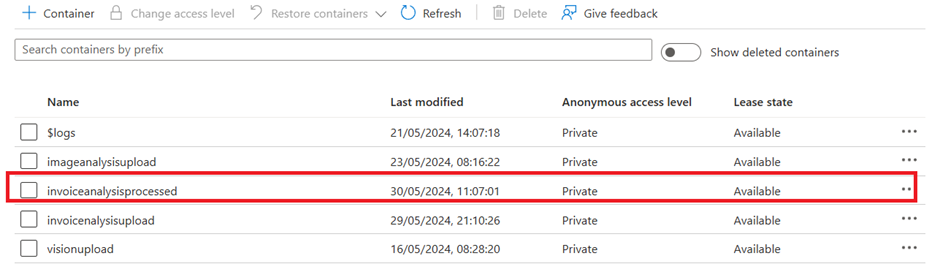
Azure Storage – (invoiceanalysisupload container)
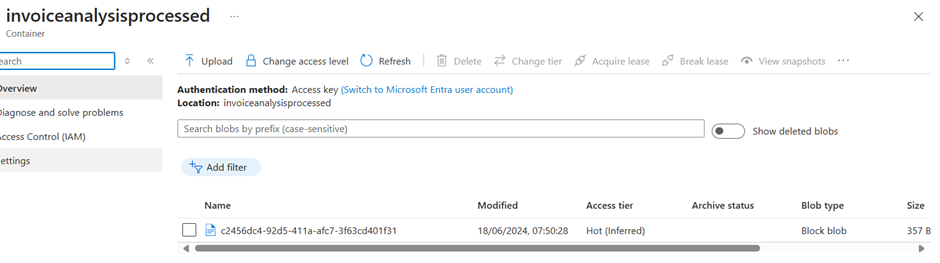
Processed Output file
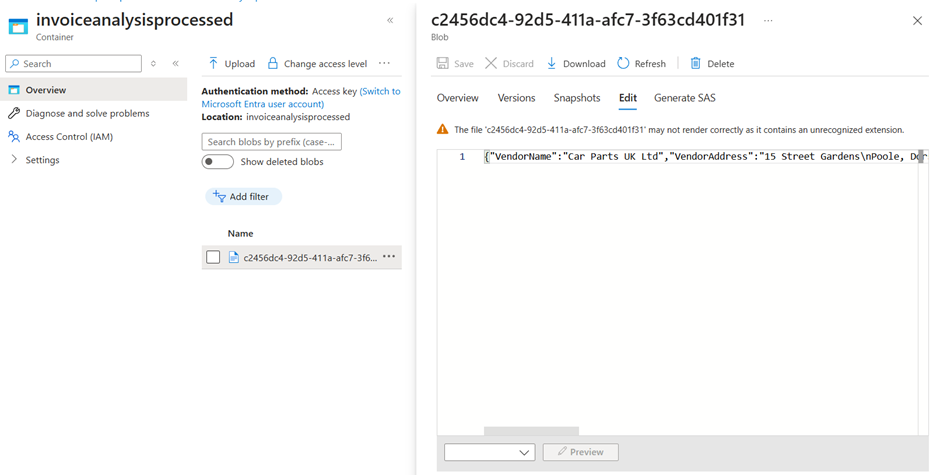
File Contents
{
"VendorName":"Car Parts UK Ltd",
"VendorAddress":"15 Street Gardens\nPoole, Dorset, DS11 333",
"CustomerName":"Car Shop",
"CustomerAddress":null,
"InvoiceItems":[
{"Quantity":10.0,"ItemDescription":"Ferrari 360 Spider Hood","Amount":"50000"},
{"Quantity":5.0,"ItemDescription":"Ferrari 360 Spider Gearbox","Amount":"12500"}
],
"Tax":"12500",
"InvoiceTotal":"75000"
}
Note: The code does not extract the customer address, but this is in fact possible.
The handwritten jpeg image, the second invoice as a jpeg image and the PDF all proved to have 100% extraction using the Microsoft AI Document Intelligence service. That’s just amazing!
It is as simple as that!
The reason for creating a interactive SPA as a sample app, is to demonstrate the features. The same code can be used in event driven architectures, or scheduled triggers. That will be something I will post next.
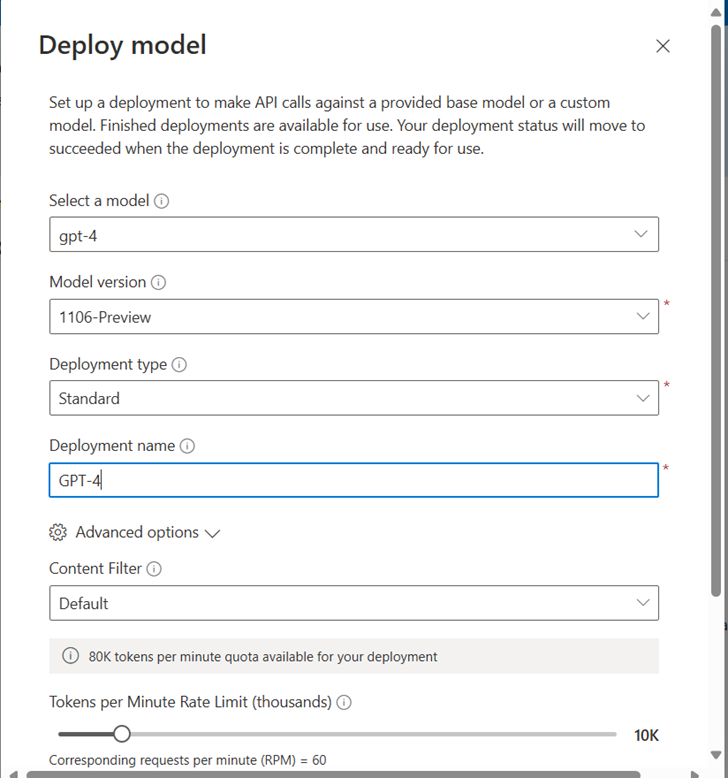
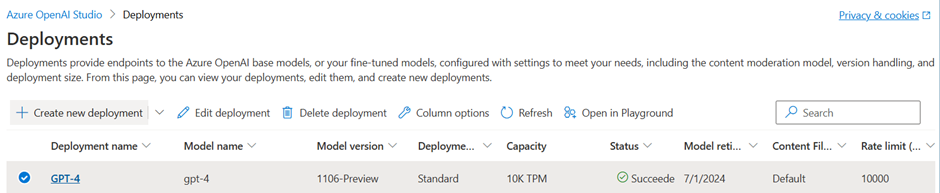
Many models in the Azure Open AI service are being deprecated on June 14th 2024. All Microsoft Azure Open AI service model retirement dates can be found on Microsoft learn here. It’s time to deploy GPT-4 to Blazor Simple AI and make the minor changes in appsettings.json to utilise the a deployment based on GPT-4. Follow the steps below.
To download all parts of this post, you can download the PDF here.
Set the model version, deployment type, I have chosen standard, enter the name of the deployment and the number of required tokens minute and click Create.
Your model will be deployed.
Update the configuration settings in the application
In the configuration section below, update the Open AI deployment name setting, in my case the deployment name I had chosen is “GPT-4”.
That’s all you need to do, Blazor Simple AI Chat is now using Chat GPT-4 from the Microsoft Azure Open AI service. No other code changes are necessary at this stage.
Welcome to JARVIS, the AI document redaction processor. At the time of publishing this version of his document, I was still developing Jarvis as a fully working product. The current version supports word documents and PDFs. With the development of Blazor Simple AI, I can also utilise the image analysis component to redact PII information from images..
If you would like to download a PDF of this post, you can download it here.
Jarvis is made up of the following technologies:
Microsoft .NET Blazor (.NET 6.0 LTS release)
Microsoft Azure Cognitive Services (Text Analytics Service)
Microsoft Azure Cosmos DB (for maintaining document and redaction processor metadata)
Azure Web App (hosting the JARVIS AI Web App)
Azure Storage (source document upload and redaction storage)
Microsoft Azure Function App (for APIs that process PII data and perform redaction processing)
Radzen Blazor components (for an amazing UI experience)
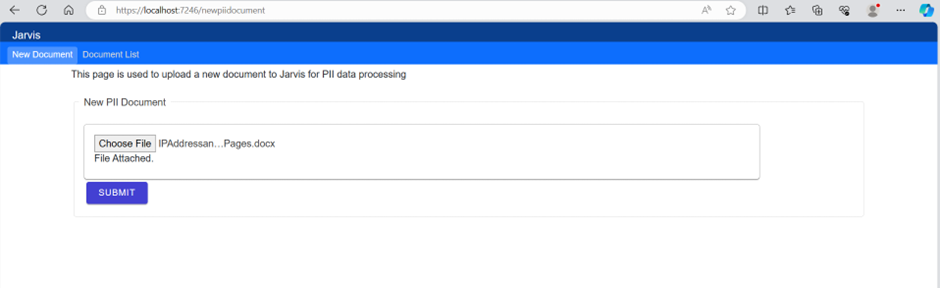
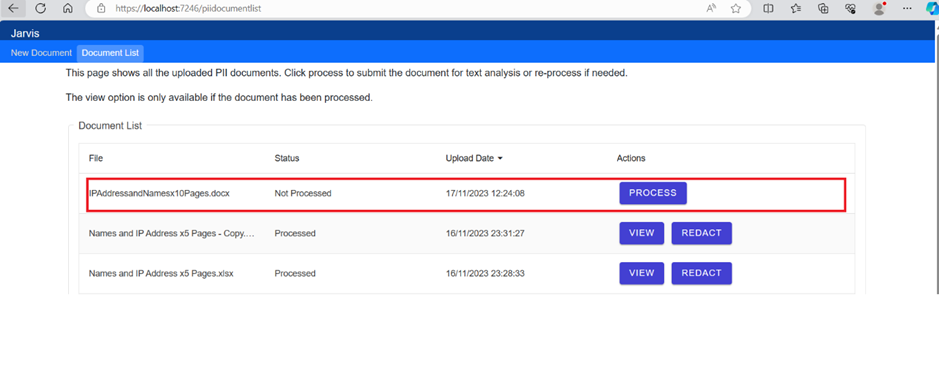
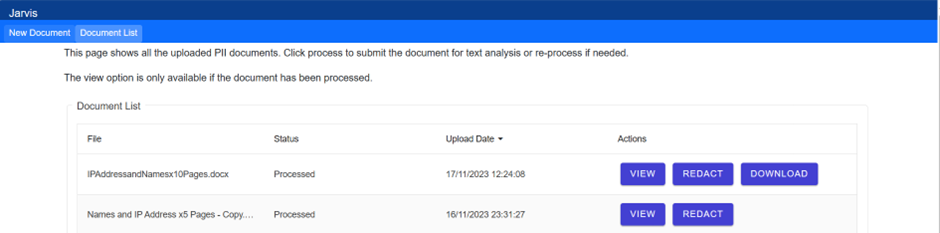
A document named “IPAddressandNamesx10Pages.docx” contains the following information, repeated within 10 pages.
——————————————————————————————————————————-
The IP Address if the legacy system is 10.254.1.1.
The company that owns the legacy system is Microsoft.
The original founders of the company Microsoft are Bill Gates and Paul Allen.
——————————————————————————————————————————-
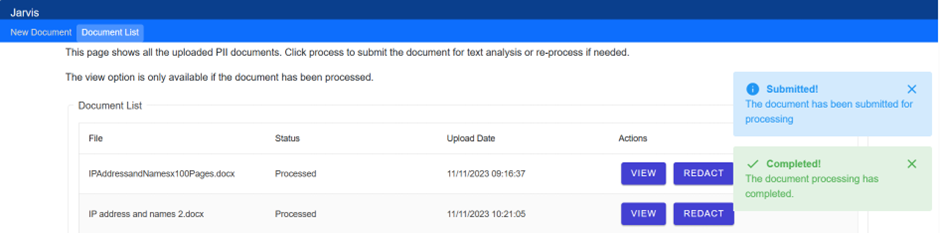
The document is uploaded to Jarvis, the AI Document redaction processor.
The user clicks “Process” to determine the PII and confidential data held in the document.
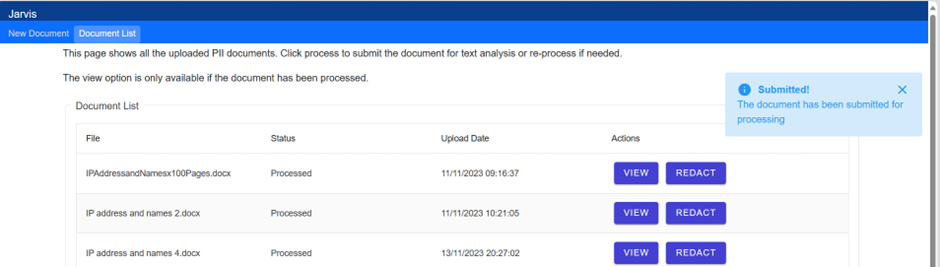
A notification is sent to the user to advise the document has been submitted for processing.
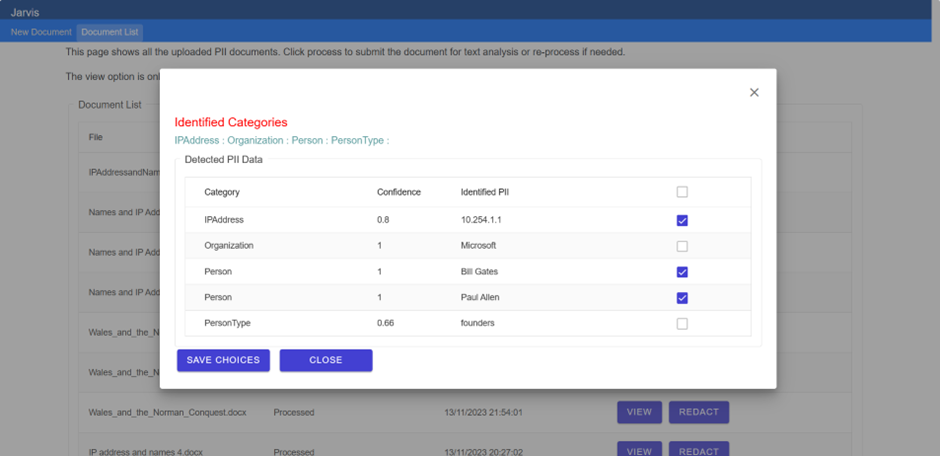
About 3 seconds later Jarvis has identified the PII and confidential data in the document and provides a notification to the user.
The user can then click “View” and then select which data needs to be redacted from the document.
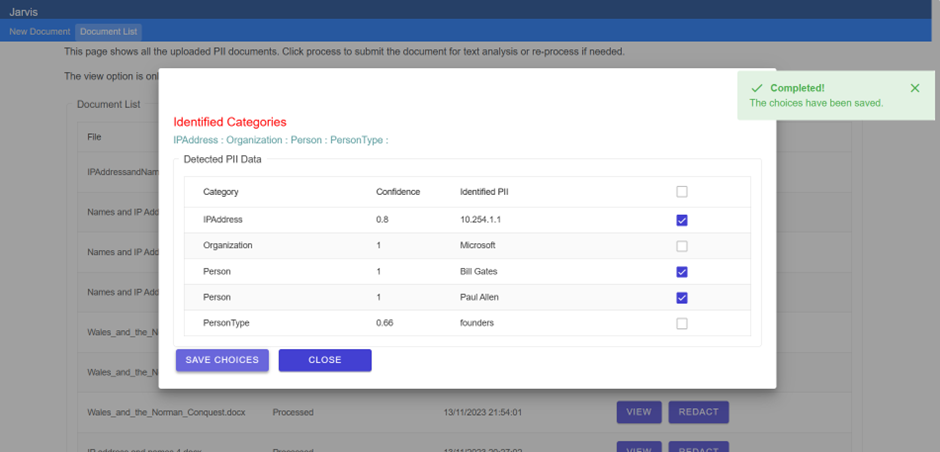
The user then clicks “Save choices”. This will save the collection of choices, the metadata, to Azure Cosmos DB.
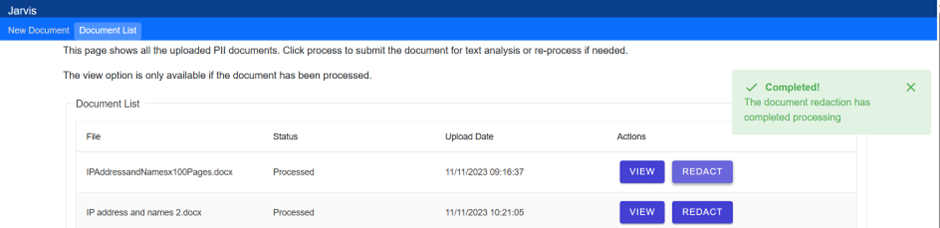
The user then clicks “Redact” and the user is notified of the submission and completion.
The user clicks the download button which is available after the redaction process has completed. The document is displayed with the information redacted using Microsoft Office apps (this can be downloaded to the machine directly also).
The process is going to be made simpler by a set of walkthroughs in the UI which will be a set of steps with instructions, including a preview document component.
Welcome to the Blazor Simple AI Single Page App, Part 2 of the Microsoft AI services journey, which now includes image analysis utilising Microsoft Azure AI Vision. The Vision Read API is used to extract the text from an image. This document explains the project in my GitHub repository which is available here: https://github.com/tejinderrai/public/tree/main/BlazorSimpleAI.
If you would like to download both part 1 and part 2 as a PDF document, you can download the PDF here.
Since part 1, the following nuget packages have been added to the project.
Azure AI Vision Image Analysis – for reading text and metadata from images.
Radzen Blazor – for providing an amazing UI experience.
Azure Storage Blob – for handling interactions with Azure Blob Storage.
Visual Changes
I have made some appealing improvements from the basic Blazor template and styled the UI based on a project from Martin Mogusu available here: GitHub – martinmogusu/blazor-top-navbar: A top navbar example created in blazor. This saved me a lot of time and all I had to do was apply my own visual styles after the top navigation was applied to the project in shared/NavMenu.razor. In addition, I had added a pre-built model for interactive Invoice Analysis and processing, which I will leave the full explanation until Part 3 of this post.
Components
Three components have been developed for the image analysis. These are as follows:
Vision.razor – The Image Analysis page
VisionBlobLoader.razor– This includes the capability to upload files to Azure blob storage, which also sets the content type for the blob file.
VisionBlobFileList.razor – This is a child component embedded into the VisionBlobLoader component, which lists the image files that have been uploaded to Azure blob storage.
Note: Whist this project utilises the service key, in an enterprise environment, you must consider using token based access to the service secured by Microsoft Entra ID, or if you wish to utilise the service key for any reason, utilise Azure Key Vault to protect the key used by the application with a managed identity for the application to access the service key stored in Azure Key Vault.
Components
File Upload Component (VisionBlobLoader)
The file upload component utilises Blazor InputFile for the user to select the file to upload in the application. The component reads the Azure Storage connection string from the configuration, including the container, then uploads the file to the container and also adds a blob http header for the file content type taken from the file properties. The Radzen notification service is used to notify the user of the application activities. I also included a basic spinner as part of the interaction for the upload process.
Blob List Component (VisionBlobFileList.razor)
This component reads the Azure Storage connection string from the configuration, including the container, then displays the blob file names in a Radzen DataGrid. A button is added to Analyse the image, which then calls the Radzen notification service to display the activities being taken by the application.
Data Classes
Two data classes have been created as follows:
AzureBlobFile.cs – Azure blob file properties
ImageDetails.cs – Image details for extraction from the AI Vision Analysis
The UI
The UI is as follows. Notice the menu control has now changed since Part 1. Invoice Analysis will be formed in Part 3, at the time of writing this blog post, I had already uploaded the code to my GitHub repo.
Home page (Chat)
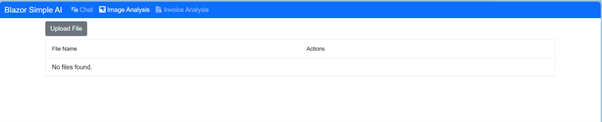
Image Analysis
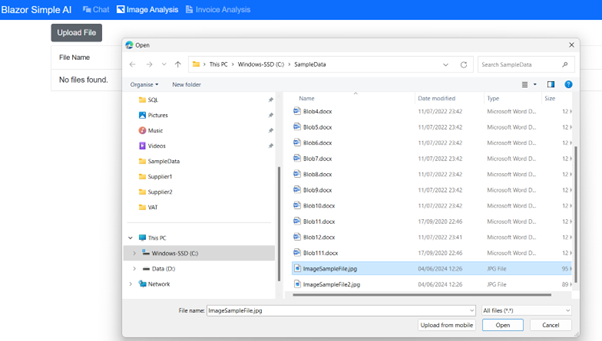
Upload File Control
Upload Action Spinner
Radzen Blazor File Uploaded Notification
Process Button
The process button read the application configuration for the Azure AI Vision endpoint and service key, then retrieves a SAS token from Azure for the blob being processed and a URL is generated with the generated SAS token, then this is submitted to Azure AI Vision with the generated URL. The SAS token is generated by the async method CreateServiceSASBlob(string BlobName) in the component class. Whilst the method can be defined as a utility class, I have composed this for easier reading of code.
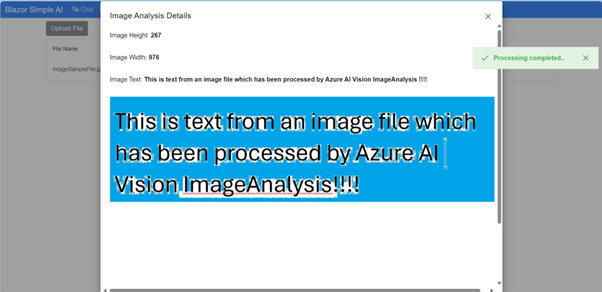
Image Analysis Dialog
When the image processing has completed, a Radzen notification is displayed to the user, with a Radzen dialog popping up to show basic metadata (height and width) of the image, including the text the AI Vision service has extracted as well as the image itself.
That is AI Vision and Image Analysis wrapped up.
Part 3 will focus on processing invoices using the pre-built AI model “prebuilt-invoice” part of Microsoft Azure AI Document Intelligence and creating output files for further processing.
Welcome to the Blazor Simple AI Single Page App, the AI App that responds to questions instantly using Microsoft Azure OpenAI Services. This document explains the .NET project I developed which I have pushed to my public Github repository which is available here: https://github.com/tejinderrai/public/tree/main/BlazorSimpleAI.
If you wish you to download the PDF version of this blog post, it is available here.
Technologies
Blazor Simple AI is made up of the following technologies:
Microsoft .NET Blazor (.NET 6.0 LTS release)
Microsoft Azure.AI.OpenAI .NET Library
Microsoft Azure AI Services – OpenAI
It’s that simple!
Why Blazor?
Blazor is simply amazing, I have been developing Blazor projects for over four years. There has been great demand for Blazor over the past few years and as a component framework and use of C# this is exactly what I need to develop solutions and concepts super fast!
What Blazor Simple AI Does?
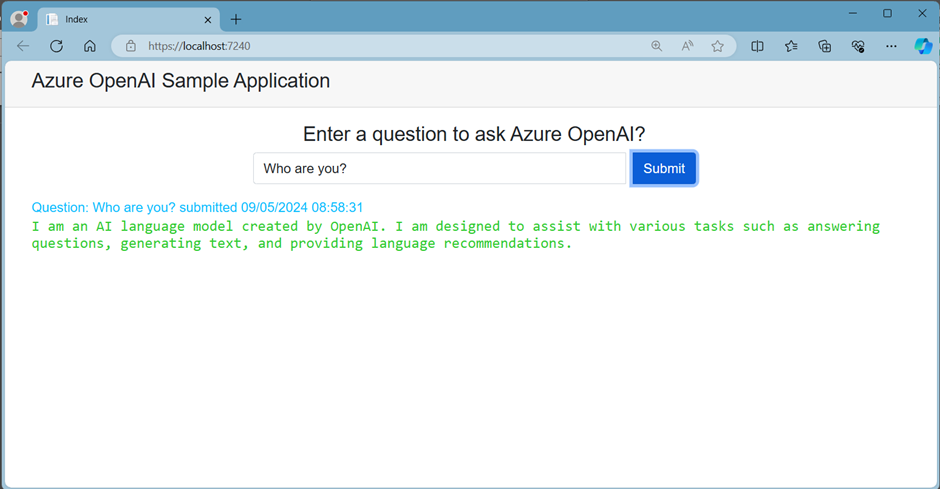
Blazor Simple AI is a Blazor server side single page app which has a single page and a single component. The razor page has two basic user interface controls, a textbox and a submit button for a user to enter the question for Azure OpenAI. The component “AzureOpenAIChat.razor”, has a single parameter which receives the question from the main index page. When the parameter is received by the child component, the component has OnParametersSetAsync() method which then retrieves the appsettings.json values in relation to the Azure OpenAI service AI endpoint, Azure OpenAI key and the deployment name which has the associated model, which was deployed with Azure AI Studio, then send the text to the Azure OpenAI service and retrieves and displays the response.
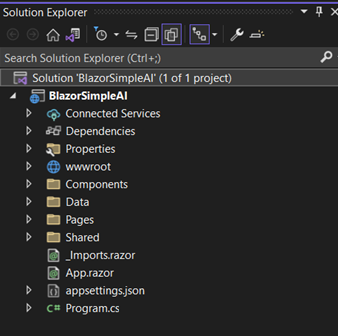
Core Blazor Template Changes
There have been some basic changes to the basic Blazor layout to accommodate the project. These are as follows:
The sidebar has been removed from the MainLayout.razor page
A new Index.razor.css style sheet has been added to centre the UI components on the page
A new Components folder has been added to the project
A new component named AzureOpenAIChat.razor has been added into the Components folder
A new configuration section has been added to appsettings.json to include the configuration required for the project to interact with the Azure OpenAI service.
The title and main element have had text changes to represent the project name and description
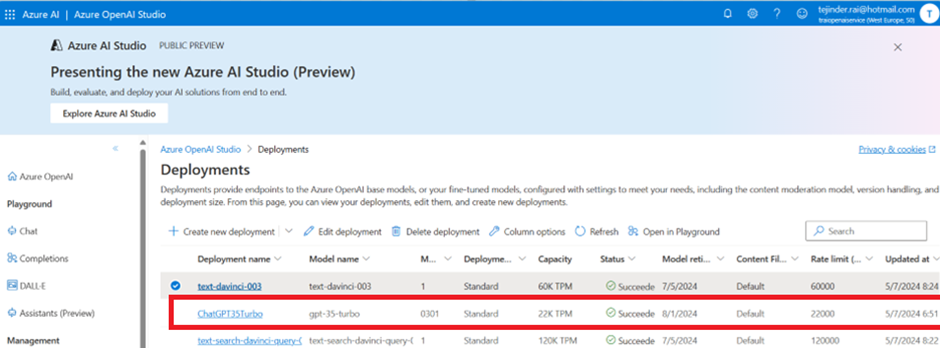
Manage Deployments in Azure AI Studio and create a deployment using the gpt-35-turbo model
Update the appsettings.json with the settings
"AzureAIConfig": {
    "OpenAIEndpoint": "https://[You Azure OpenAI Service].openai.azure.com/",
    "OpenAIKeyCredential": "[Your Azure Open AI Key]",
    "OpenAIDeploymentName": "[Your Azure Open AI Deployment Name]"
    "RetroResponse": "true or false"
}
Build the project and ask Azure OpenAI anything you like.
The UI
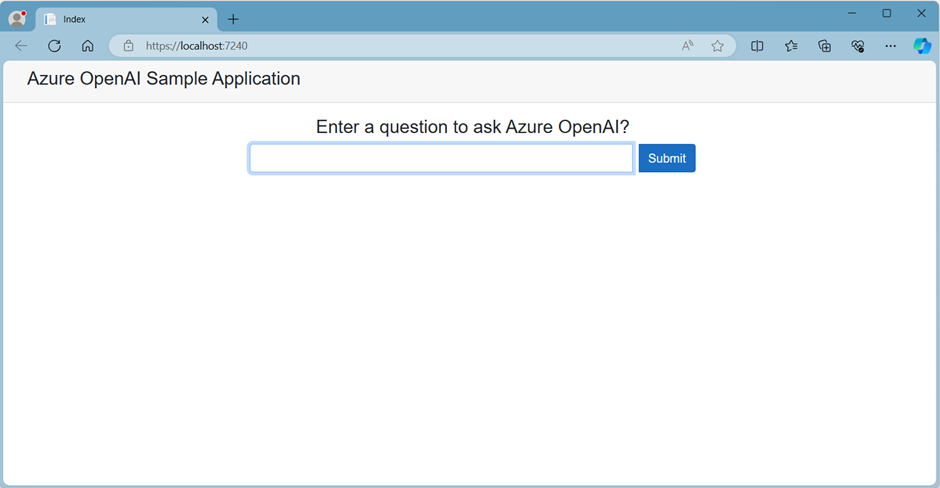
The landing page.
Sample Questions and Responses
Question 1
Who founded Microsoft?
Question 2
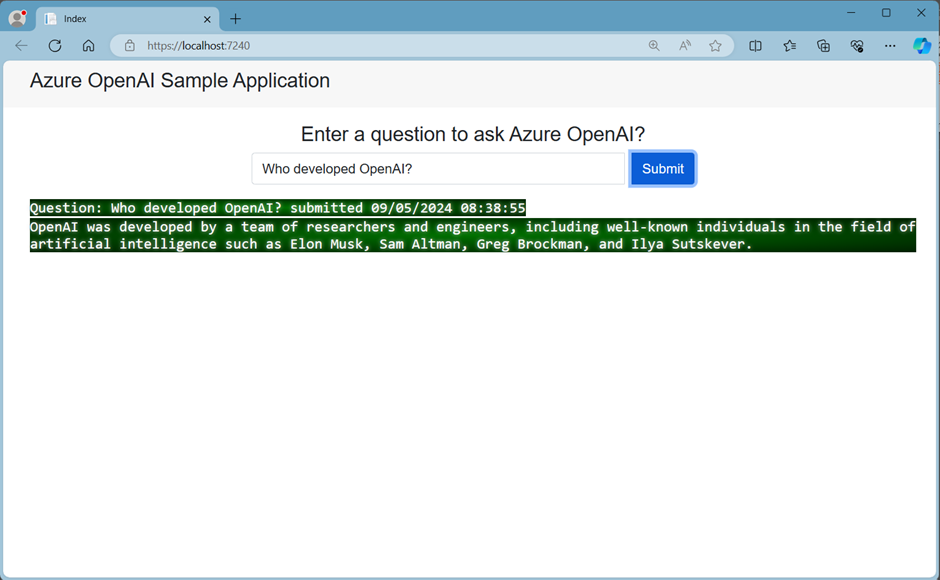
Who developed OpenAI?
Question 3
How can I develop a Blazor App?
Basic CSS
The AzureOpenAIChat.razor component has a basic CSS style sheet which allows the deployment to have a retro style response or a basic response text visualization option. If the app setting below is set to true, you will get the retro response as per the sample above. For a standard non-retro style response, you can set the value to false, example below.
Over the past few months I have been working on a sample project, which will eventually be published to my GitHub repo. The project specifically focusses on Microsoft Entity Framework with an Azure SQL database and also utilises Blazor as the underlying UI and logic layer, including DevExpress for Blazor UI components. This is an initial post which describes the project and it’s capabilities.
The CarShop project was envisioned from wanting to build something new and then work on multiple articles rather than only a few for a project, for part of this year. This will enable me to provide updates at various intervals and at some stage, including the publishing of the code.
Why a CarShop?
Since I am car fan and have been for many years, I thought this would be an exciting project to work on this year. With Blazor + .NET and DevExpress being some of my favorite development frameworks, I thought this would be ideal as a project.
The database schema
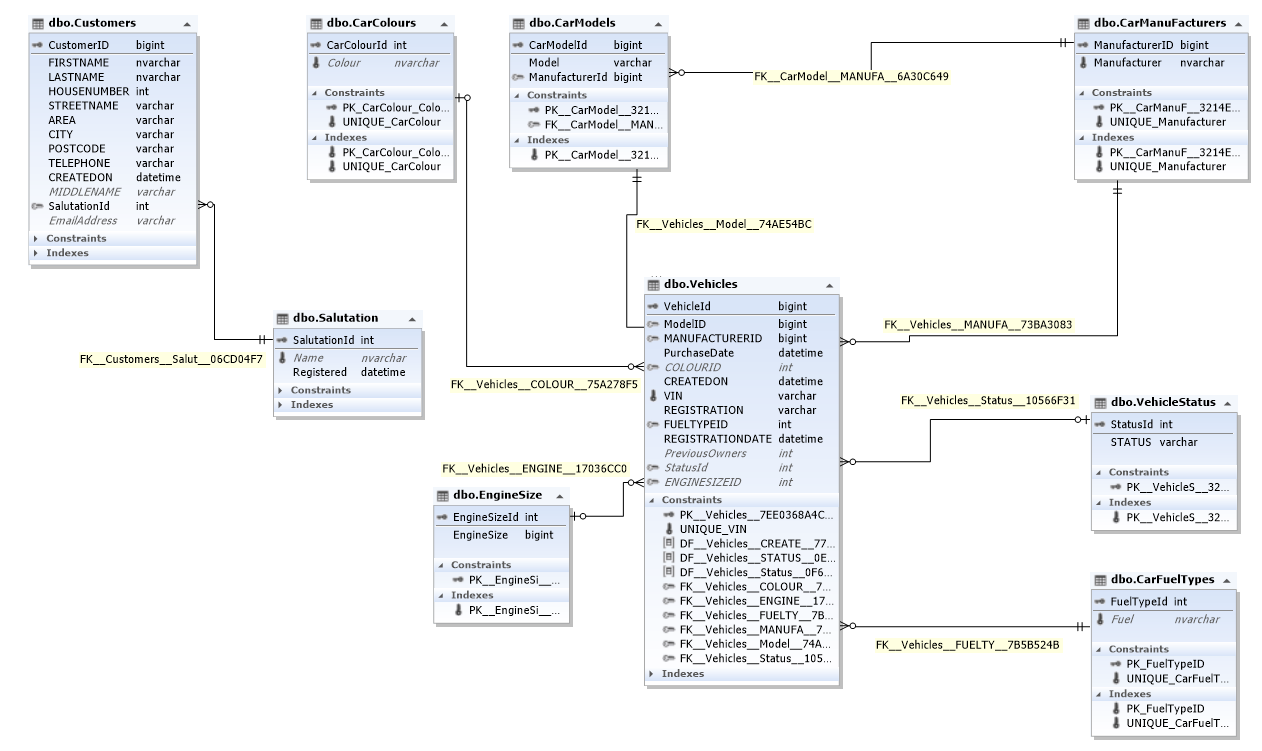
Since I am using the Microsoft Entity Framework in the Blazor Visual Studio project, the schema was exactly where I wanted to start. As the iterations developed, I decided to go straight into Azure SQL to provision my tables, entities and relationships, primary keys and foreign keys etc. The project needs to store car details (at a basic level), customer details, car manufacturers, car models, fuel types, engine sizes etc. Whilst it is a simple model to start with, it’s relatively simple to expand the schema as I see fit, both from the SQL backend as well as the coded elements and data classes.
CarShop Schema – Developed using dbForgeStudio 2022 for SQL Server
Since this is a relatively simple sample project, the data is held in a single Azure SQL database. As you can see, the Vehicles table has the most relationships with car fuel types, vehicle status, engine size, colours, models and manufacturers. For the customers table, I’ve kept the design simple for now although I intend to expand this into a scenario where there may need to be some data quality checks and periodic checks around when the customer data was last updated, for reasons I will include in a future post.
Part 2 will focus on the Transact-SQL, so that the schema can be provisioned.
You might wonder, your an Architect, why are you posting blogs about coding? Good question I would say 🙂 Well, working as an Architect is my day job, but there are many different ideas I have in my head and some of them just require a bit more thought, where I might need to build a PoC, or sometimes like this post, I like to try out new frameworks, libraries or just build samples for fun. Having already coded for well over a decade in .NET, doesn’t stop me from wanting to keep up to date with my coding skills , especially C#, or trying out different architectural patterns to understand how they can be applied in software applications, hybrid architectures, native cloud architectures or help a project I am working on at a specific point in time. From a work perspective, all things Microsoft are highly important to me, especially since I consider myself lucky enough to have spent a fair bit of time working at Microsoft Canada, Microsoft UK and in Seattle at Microsoft HQ and at Microsoft conferences being trained and kept up to date on technologies, which were not always about Microsoft Azure of course.
Now back to this post…
With the recent updates announced at the .NET 2020 Conference last week, I decided to try out the new InputFile UI component in Blazor. Steve Sanderson had already posted a blog regarding a InputFile component herepreviously, in September 2019. This is now included with the launch of .NET 5. I’ve also been using the DevExpress Blazor UI Components library and used the <DXUpload/> UI component, which I highly recommend also.
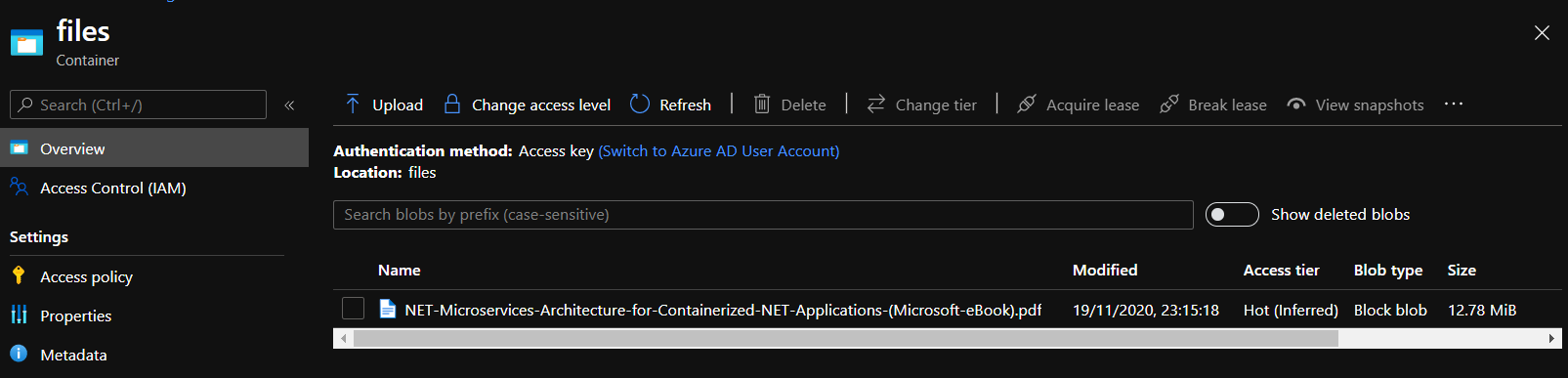
In this post I wanted to try out the new native InputFile Control and upload some files to Azure blob storage for testing purposes. I am working on a project which will require the basic functionality of file uploads and downloads to and from Azure blob storage, I may add a future post about one of the new exciting projects I am working on.
Note: This is a very basic implementation for the purposes of this blog post, it is not at all production ready.
Nuget Packages
With any .NET project, the first thing you may want to do is to decide your approach on how you want to build out your components, whether or not you have existing shared libraries, component libraries, NuGet packages you work with regularly, or if you just like coding and building your own supporting toolsets and templates, you may not even need to include anything from the onset and just include packages whilst you are building out your solution in an agile way.
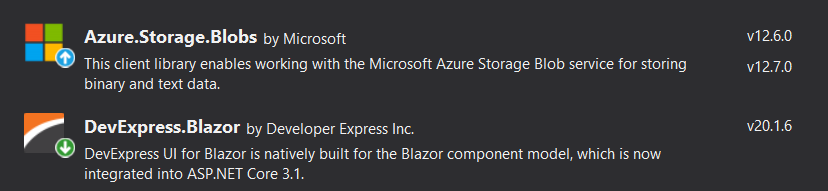
In my sample project, a Blazor Server application, called BlazorFileUploader, I used the following NuGet packages, Microsoft Azure.Storage.Blobs client library and DevExpress.Blazor.
The following configuration was added for the Azure blob storage connection string. Of course, in an enterprise scenario, if your hosting your application in Azure App Service, you could utilise Azure KeyVault, which is recommended instead.
The the default configuration provider, the connection string is set in string within a config context class.
public class Startup
{
    public IConfiguration Configuration { get; }
    readonly string MyAllowSpecificOrigins = "_myAllowSpecificOrigins";
    public Startup(IConfiguration configuration)
    {
        Configuration = configuration;
        Config.AzureStorageConnectionString = Configuration.GetConnectionString("StorageAccountConnectionString");
    }
....
Config.cs
The AzureStorageConnectionString is set by the code above, so this can be used when the server upload is handled server side.
using System;
using System.Collections.Generic;
using System.Linq;
using System.Reflection.Metadata.Ecma335;
using System.Threading.Tasks;

namespace BlazorAzureStorageFileLoader.Data
{
    public class Config
    {
        public static string AzureStorageConnectionString { get; set; }

    }
}
New Razor page
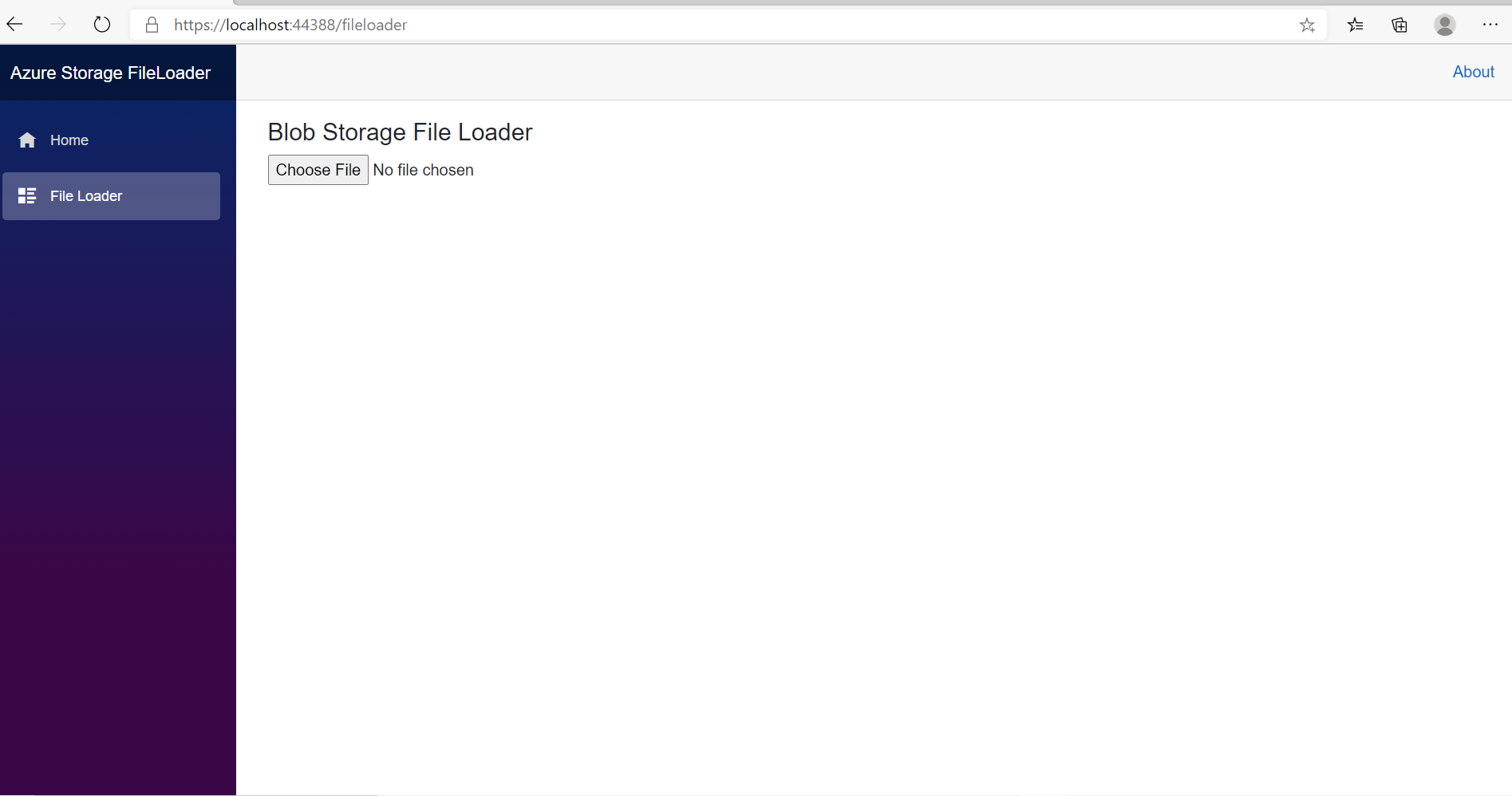
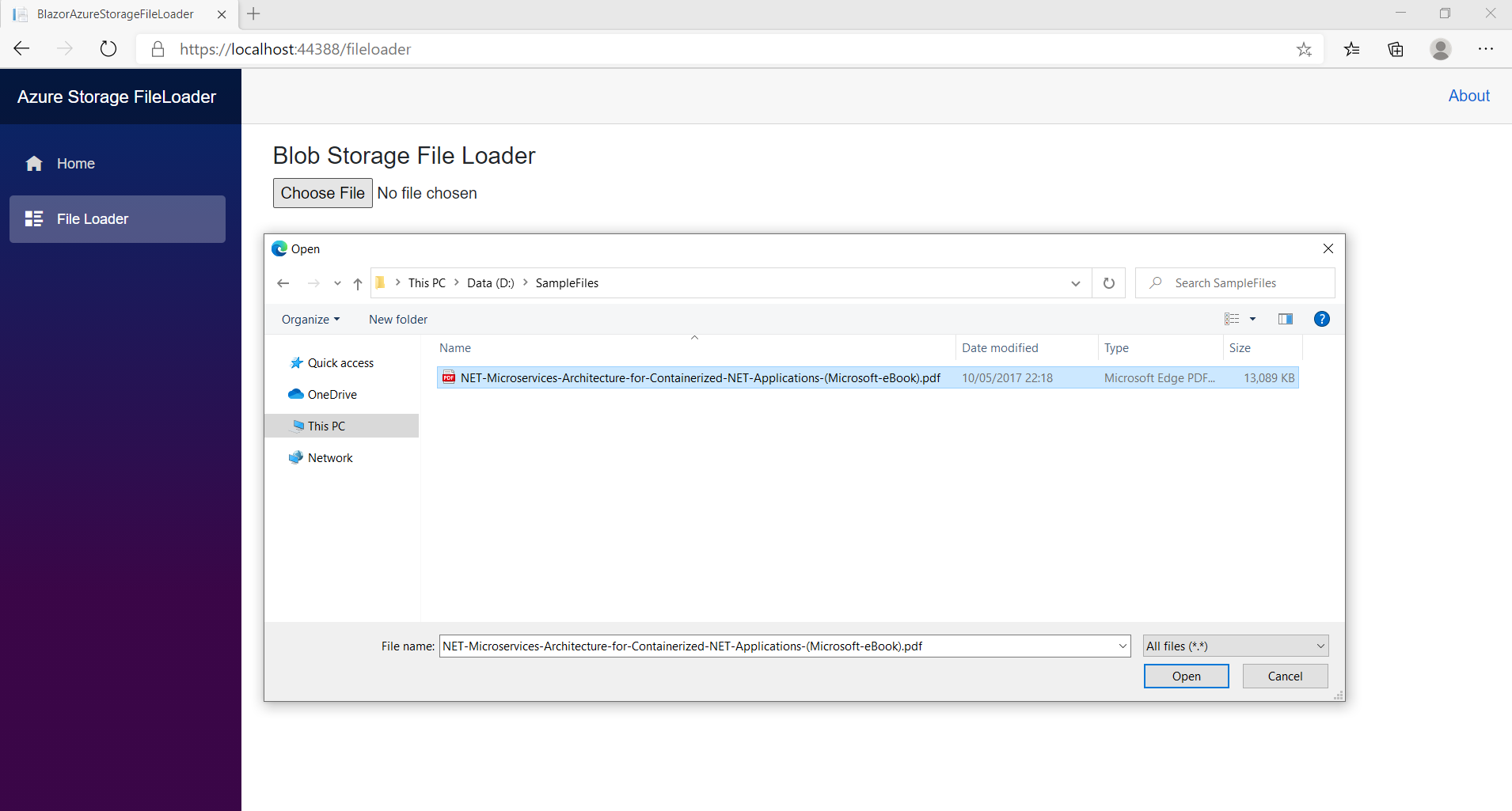
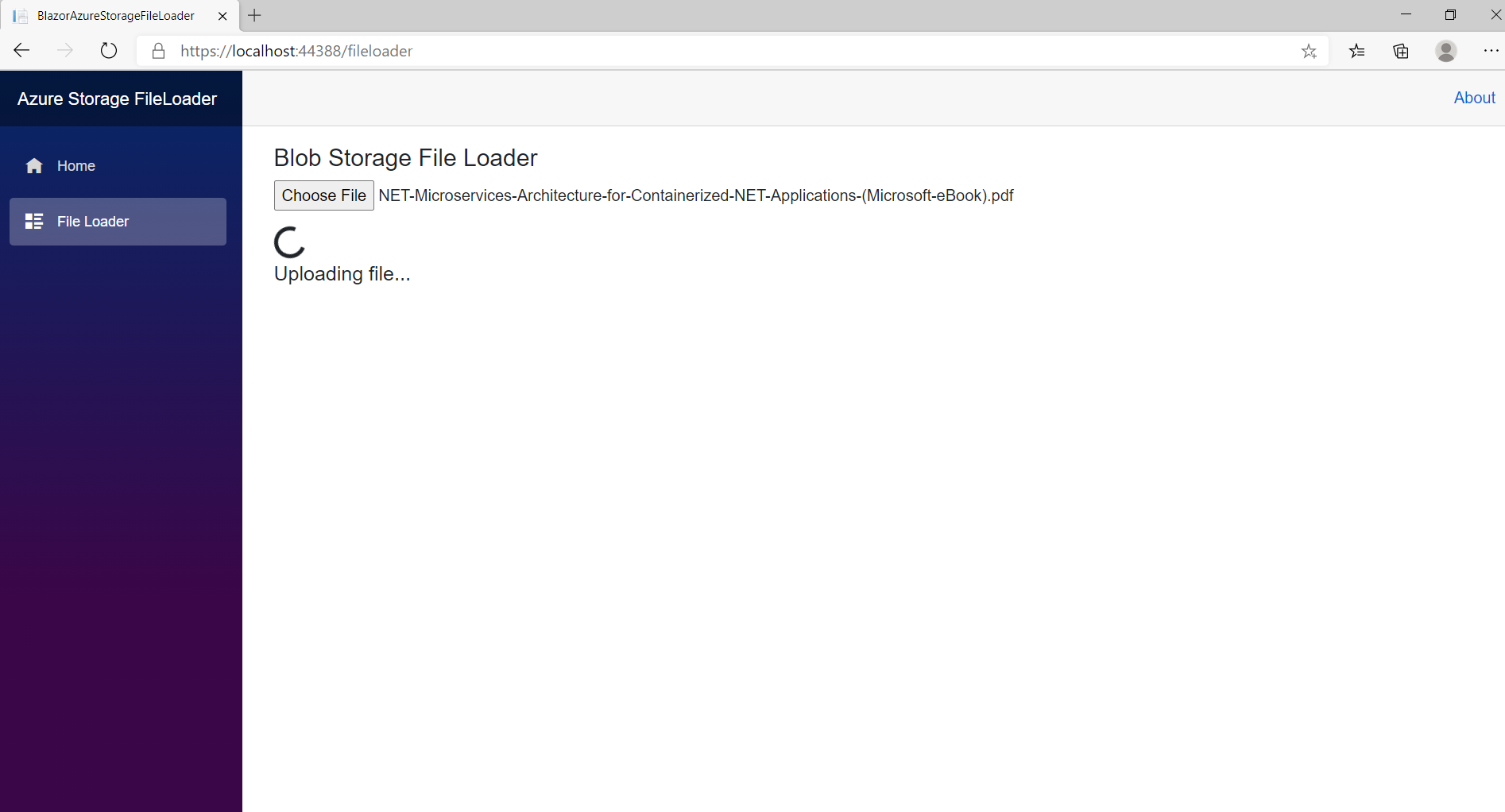
A new Razor page is created to handle the file uploads, a bulk of the code, with the <InputFile/> component.
Note: I hard coded a container named “files” in the code. This is not necessary of course, you can build your own blob storage browser and even have methods to retrieve files and create containers.
The navigation menu is updated to remove the default links and an update is made to the application display name. A new navigation link is added to the fileloader razor page.
On the 8th of November, I submitted an Android app on Google Play named Cloud Release. Google published the app to the store on the 11th November and it is currently available in 10 countries.
As a Microsoft Azure Cloud Architect, it was important for me to keep up to date with all the latest previews, developments and releases into the Microsoft Azure cloud platform which is why I have created the Android app, so that I can easily be kept informed of all Microsoft Azure updates. I’ve kept the layout simple, in a listview, with a web browser view to launch directly into the published article from Microsoft. This enables me to keep up to date on a regular basis on all recent developments in Microsoft Azure in one place. I developed the app during my train journey’s and in some of my spare time in the evenings and I’m delighted to release it free to the Google Play store. I’ll be releasing new features over time, but for now this is what the app provides.
Synchronisation of the latest articles on the application launch
A local database is used for all downloaded articles
Quick search feature to query the local database
Direct Web browser view, to review the full article on the Microsoft docs web site
You can download the app free from the Google Play store here.




















 Welcome to Tejinder Rai's blog, Cloud Solutions Architect