Over the past few months I have been working on a sample project, which will eventually be published to my GitHub repo. The project specifically focusses on Microsoft Entity Framework with an Azure SQL database and also utilises Blazor as the underlying UI and logic layer, including DevExpress for Blazor UI components. This is an initial post which describes the project and it’s capabilities.
The CarShop project was envisioned from wanting to build something new and then work on multiple articles rather than only a few for a project, for part of this year. This will enable me to provide updates at various intervals and at some stage, including the publishing of the code.
Why a CarShop?
Since I am car fan and have been for many years, I thought this would be an exciting project to work on this year. With Blazor + .NET and DevExpress being some of my favorite development frameworks, I thought this would be ideal as a project.
The database schema
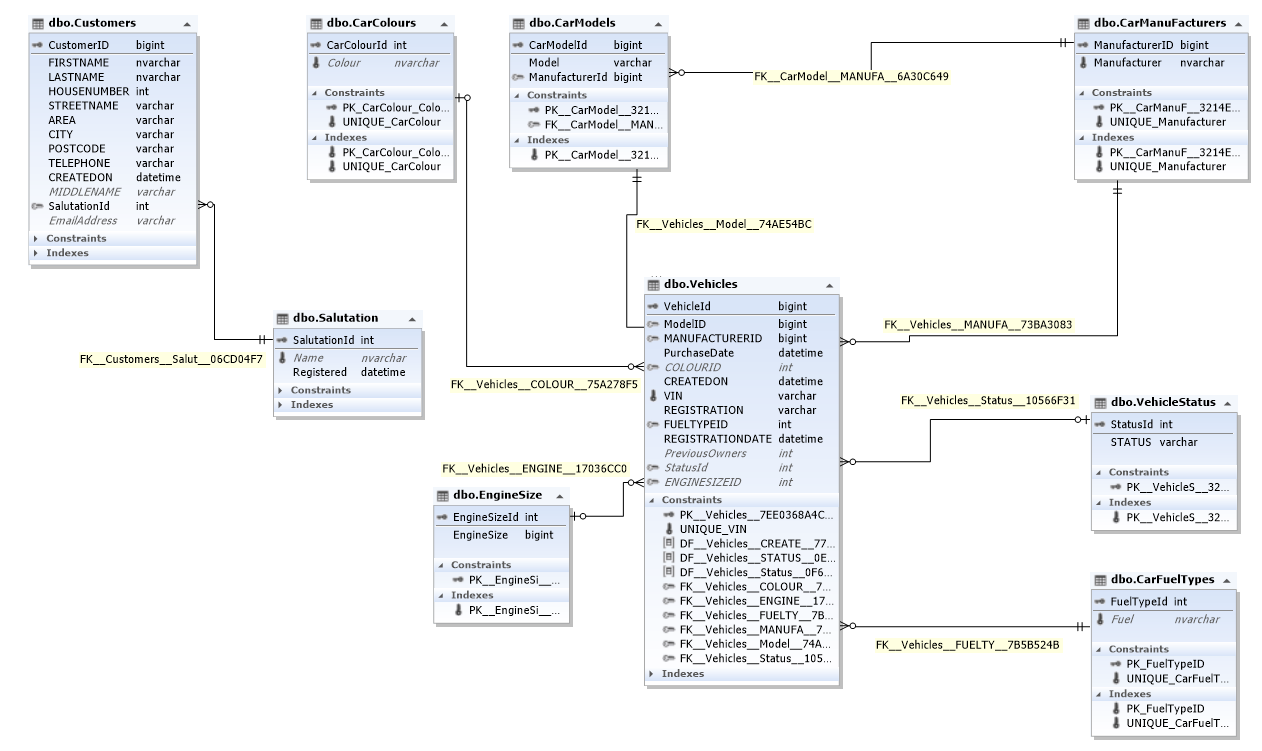
Since I am using the Microsoft Entity Framework in the Blazor Visual Studio project, the schema was exactly where I wanted to start. As the iterations developed, I decided to go straight into Azure SQL to provision my tables, entities and relationships, primary keys and foreign keys etc. The project needs to store car details (at a basic level), customer details, car manufacturers, car models, fuel types, engine sizes etc. Whilst it is a simple model to start with, it’s relatively simple to expand the schema as I see fit, both from the SQL backend as well as the coded elements and data classes.
CarShop Schema – Developed using dbForgeStudio 2022 for SQL Server
Since this is a relatively simple sample project, the data is held in a single Azure SQL database. As you can see, the Vehicles table has the most relationships with car fuel types, vehicle status, engine size, colours, models and manufacturers. For the customers table, I’ve kept the design simple for now although I intend to expand this into a scenario where there may need to be some data quality checks and periodic checks around when the customer data was last updated, for reasons I will include in a future post.
Part 2 will focus on the Transact-SQL, so that the schema can be provisioned.
Recently I was was asked how architecture saves money and reduces risk in an organisation. I had 15 minutes to present a simple answer and demonstrate an example of how high-level analysis improves overall costs and reduces the risks as well as explain the challenges.
I created a presentation to describe this topic, with the agenda below.
I’ve recently been developing a application for the car industry, to record vehicles, models, customer information, vehicle sales and storage of images etc. This is ASP.NET Blazor application which utilises Entity Framework Core, Microsoft Azure, Azure Web sites and Azure storage. One of the features I thought would really be interesting is for the car sales administrators to enter new vehicles into their stock and then dynamically have a component which allows them to query the vehicle information via the DVLA VES Web API.
Sometimes, to start with developing a component, I develop the component code outside of Blazor i.e. a Console application which can contains all the response structure, associated methods and calls the VES API with a HTTP client.
Now that I am finished with the basics of calling the VES web API, I can now expand this with all the necessary error handling e.g. HTTP error codes, and include this as a component within the Blazor application.
I’ve published the ASP.NET console application in my GitHub repo in the link below. You will need to request a VES API key and utilise your registrations, or set these as arguments in the console app, or just set a static string for this as it is in the current code.
If you prefer to perform a simpler test, I’ve provided a working PowerShell script below, you will just need to utilise your own API Key and set the registration as required.
I’ve recently had a requirement to backup managed disks to Azure blob storage. Rather performing this manually, I scripted this with PowerShell. I created a structure within a .CSV file as an input file, which specifies the Virtual machine names and the storage container and folder, where the disks will be copied into. The script and a sample input file is in my repository below.
A few months ago I developed and published a post on a Blazor server project which utilises DevExpress UI Framwork components, Cosmos DB and Bing Maps with JSinterop. There are two Razor UI components, which are presented on the main index page, these display country and city selector drop down controls, a tiny javascript file to interact with the Bing Maps API and a Bing maps UI component.
To use this solution, you will need to provision a Cosmos DB account and create a single collection. You can utilise the Cosmos DB migration tool to load the dataset below, into the Cosmos DB collection. Various appsettings need to be updated to reflect your own Cosmos DB account, collection, partition key, database and cosmos db key. The _host.cshtml, will need to be updated for the Javascript link reference in relation to the Bing maps key too.
The project site is accessible on Microsoft Azure below and I have now uploaded the code to my GitHub public repo. Follow the links below.
For a while now, I have been adding code inline within my blob posts. I’ve now released a public repository on GitHub, which I will be using moving forward to publish all my community shared code, free for use with the MIT license.
I will start to publish my previous code into the public repository, for now I’ve published a recent .NET 5 console app which is a basic RSS reader that currently reads the .NET teams RSS feed. My public repository can be found below.
You might wonder, your an Architect, why are you posting blogs about coding? Good question I would say 🙂 Well, working as an Architect is my day job, but there are many different ideas I have in my head and some of them just require a bit more thought, where I might need to build a PoC, or sometimes like this post, I like to try out new frameworks, libraries or just build samples for fun. Having already coded for well over a decade in .NET, doesn’t stop me from wanting to keep up to date with my coding skills , especially C#, or trying out different architectural patterns to understand how they can be applied in software applications, hybrid architectures, native cloud architectures or help a project I am working on at a specific point in time. From a work perspective, all things Microsoft are highly important to me, especially since I consider myself lucky enough to have spent a fair bit of time working at Microsoft Canada, Microsoft UK and in Seattle at Microsoft HQ and at Microsoft conferences being trained and kept up to date on technologies, which were not always about Microsoft Azure of course.
Now back to this post…
With the recent updates announced at the .NET 2020 Conference last week, I decided to try out the new InputFile UI component in Blazor. Steve Sanderson had already posted a blog regarding a InputFile component herepreviously, in September 2019. This is now included with the launch of .NET 5. I’ve also been using the DevExpress Blazor UI Components library and used the <DXUpload/> UI component, which I highly recommend also.
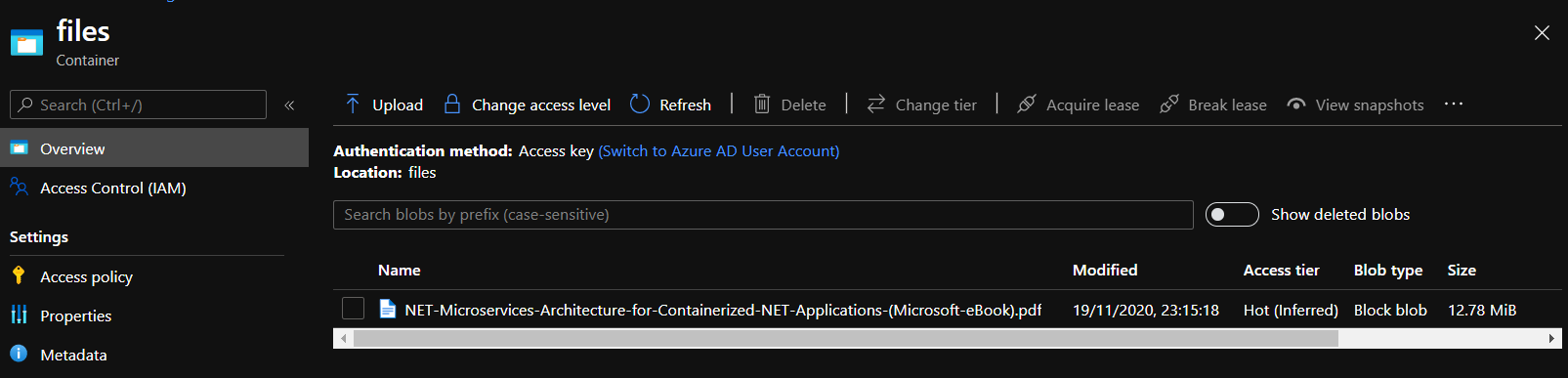
In this post I wanted to try out the new native InputFile Control and upload some files to Azure blob storage for testing purposes. I am working on a project which will require the basic functionality of file uploads and downloads to and from Azure blob storage, I may add a future post about one of the new exciting projects I am working on.
Note: This is a very basic implementation for the purposes of this blog post, it is not at all production ready.
Nuget Packages
With any .NET project, the first thing you may want to do is to decide your approach on how you want to build out your components, whether or not you have existing shared libraries, component libraries, NuGet packages you work with regularly, or if you just like coding and building your own supporting toolsets and templates, you may not even need to include anything from the onset and just include packages whilst you are building out your solution in an agile way.
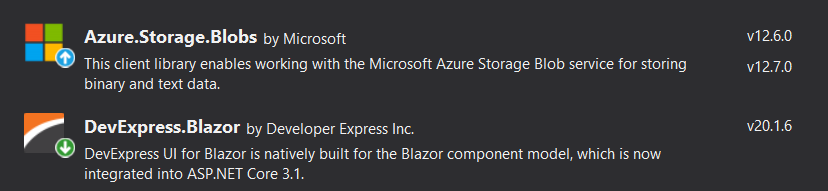
In my sample project, a Blazor Server application, called BlazorFileUploader, I used the following NuGet packages, Microsoft Azure.Storage.Blobs client library and DevExpress.Blazor.
The following configuration was added for the Azure blob storage connection string. Of course, in an enterprise scenario, if your hosting your application in Azure App Service, you could utilise Azure KeyVault, which is recommended instead.
The the default configuration provider, the connection string is set in string within a config context class.
public class Startup
{
    public IConfiguration Configuration { get; }
    readonly string MyAllowSpecificOrigins = "_myAllowSpecificOrigins";
    public Startup(IConfiguration configuration)
    {
        Configuration = configuration;
        Config.AzureStorageConnectionString = Configuration.GetConnectionString("StorageAccountConnectionString");
    }
....
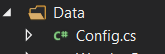
Config.cs
The AzureStorageConnectionString is set by the code above, so this can be used when the server upload is handled server side.
using System;
using System.Collections.Generic;
using System.Linq;
using System.Reflection.Metadata.Ecma335;
using System.Threading.Tasks;

namespace BlazorAzureStorageFileLoader.Data
{
    public class Config
    {
        public static string AzureStorageConnectionString { get; set; }

    }
}
New Razor page
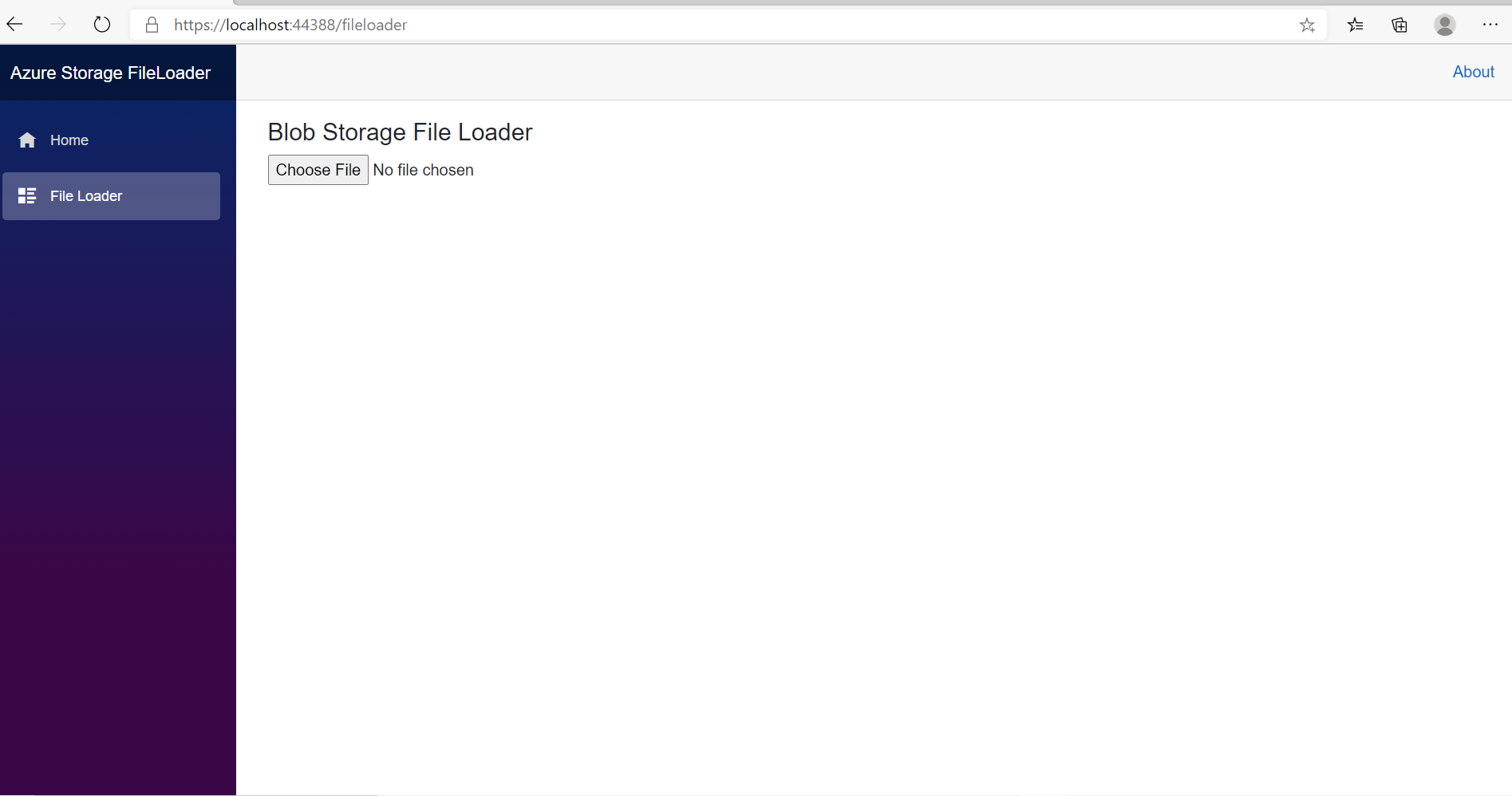
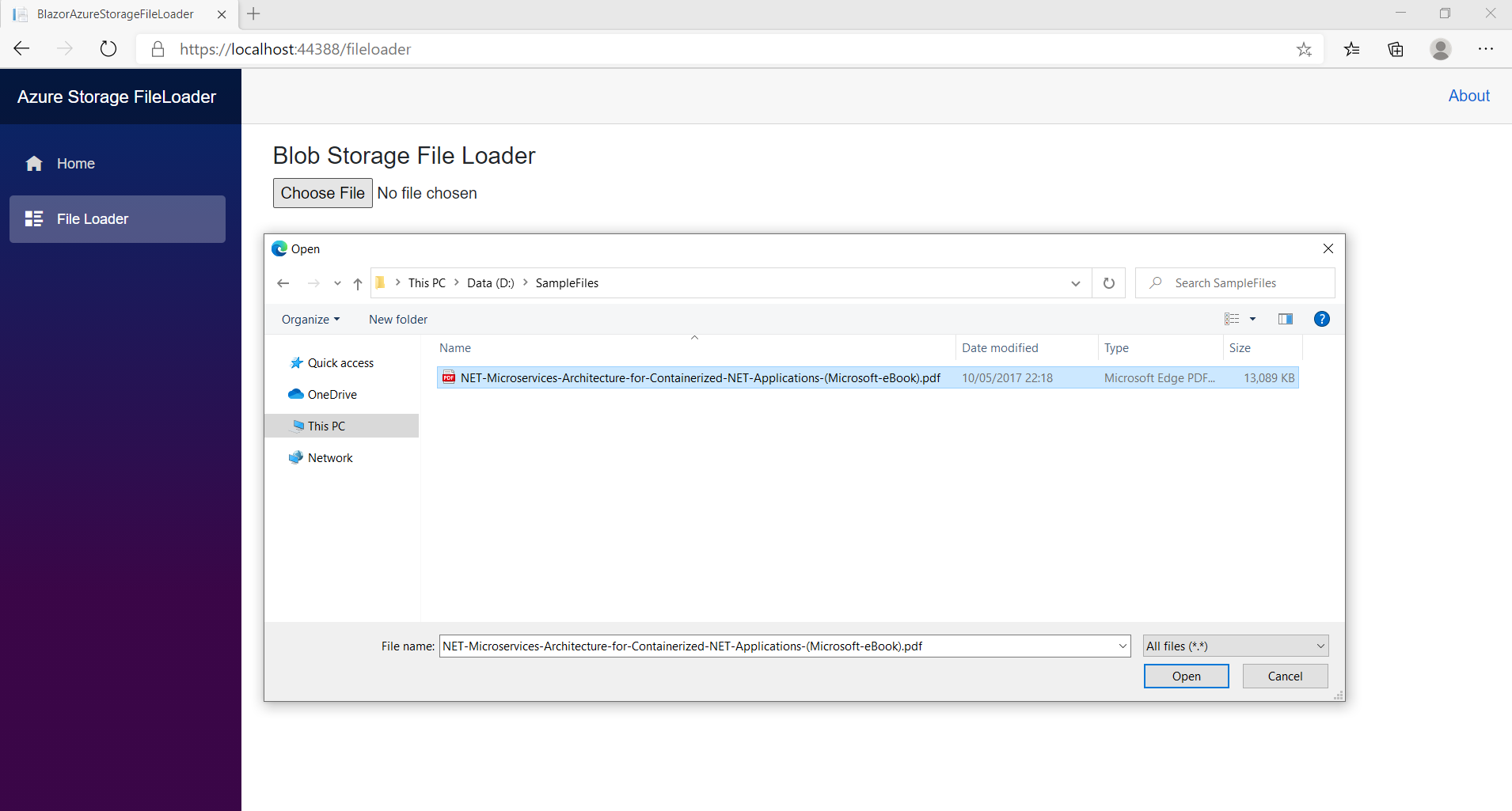
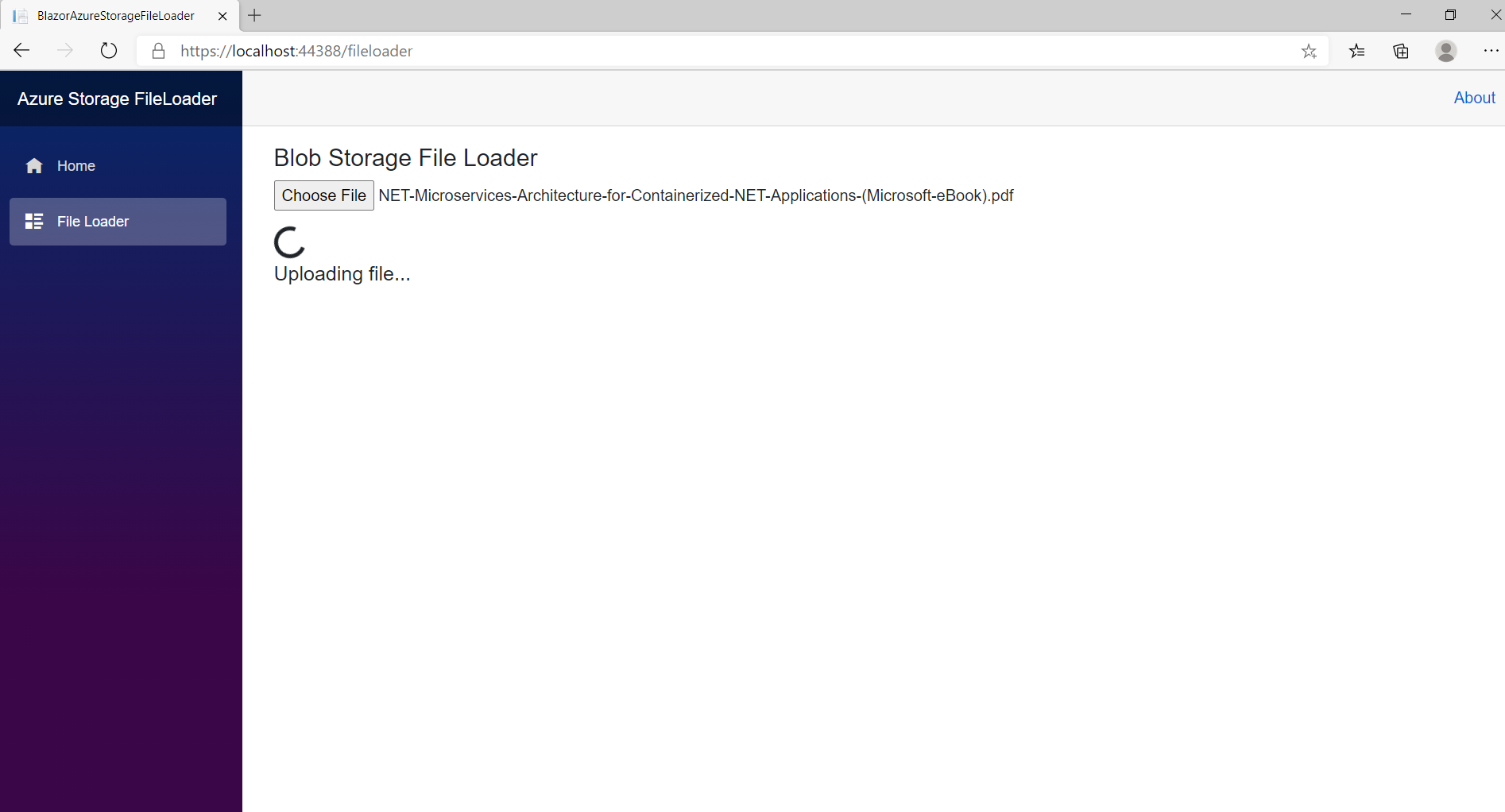
A new Razor page is created to handle the file uploads, a bulk of the code, with the <InputFile/> component.
Note: I hard coded a container named “files” in the code. This is not necessary of course, you can build your own blob storage browser and even have methods to retrieve files and create containers.
The navigation menu is updated to remove the default links and an update is made to the application display name. A new navigation link is added to the fileloader razor page.
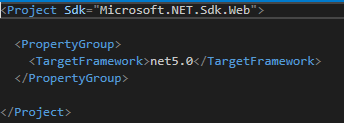
Today marks the launch of .NET 5.0, the unified platform framework which executes on desktop, web, cloud, mobile, gaming, IoT and AI platforms. Catch all the updates in the sessions at the .NET conference from November 10th 2020, through to November 12 2020, here. Ensure that you keep an eye on the support policy too, which is available here.
And more news, .NET 5.0 is available in Azure App Service, from today!
I’ve recently been working on a Blazor server side application, to integrate with Cosmos DB. The Cosmos DB holds a single collection with a list of countries and cities with coordinates for each city. I’ve had the small dataset for a while now, most of the free sources of data can be downloaded from this location: http://www.geonames.org/.
Initially the data was in .CSV format and I initially imported the dataset into an Azure SQL database. I later decided to copy the dataset into Cosmos DB and utilise the SDK within a Blazor application, added my Blazor DevExpress nuget package, for the drop down controls, then integrated a Bing Maps application with the Bing Maps SDK. Transferring the data from Azure SQL to a Cosmos DB collection was straight forward using Azure Data Factory.
I have published the basic version of the Blazor application to https://cosmosdbworld.azurewebsites.net, where you can select a country and then a city, using the DevExpress drop down controls, then the map is updated dynamically as the IJSRuntime interface is dependency injected into a Bing Maps UI component. Overall, the Bing map renders extremely quickly, as the longitude and latitude is bound to the parameters of the Bing maps component from the parent country and city drop down component. The longitude and latitude coordinates are also fetched from the CosmosDB collection, everytime a city is selected, which refreshes the map automatically. The simple javascript functions update the <div> in the UI component, with the coordinates each time the city is changed.
I was working on an issue which seemed to be a conditional access policy issue in Azure AD today. Whilst the issue was related to a conditional access policy in the sign in logs, it actually turned out to be a user requiring SSPR security information verification. During research, I found that new Azure AD tenants from August 15th 2020, start utilising the combined experience for both MFA and SSPR. This is documented here.
Here’s a view of what was occurring, which may help someone else in the future.
Problem/Scenario
A cloud application was excluded from MFA, the user also has a password policy applied to the Azure AD account not requiring password resets (something which was required for the scenario). When the user signed into the cloud application, the user received a prompt for more security information, seeming as though from the sign in logs this was point to a conditional access policy blocking the request.
Actual Issue
The actual issue was the user needed to review their verification methods to keep the account secure, for SSPR. This is controlled through the password reset options. Upon review of the sign in logs, an AADSTS50125 was present confirming the issue.
AADSTS Error Code Reference
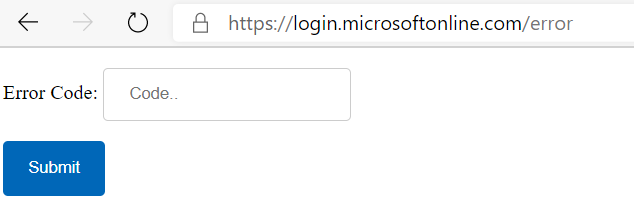
The actual AAD Security Token Service error message are well documented on this Microsoft docs page. You can also submit the code to the web page below:
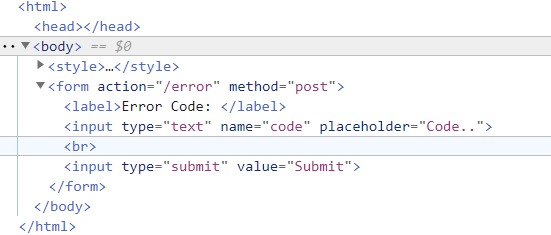
Since the above form accepts an error action with a code, as per the HTML markup:
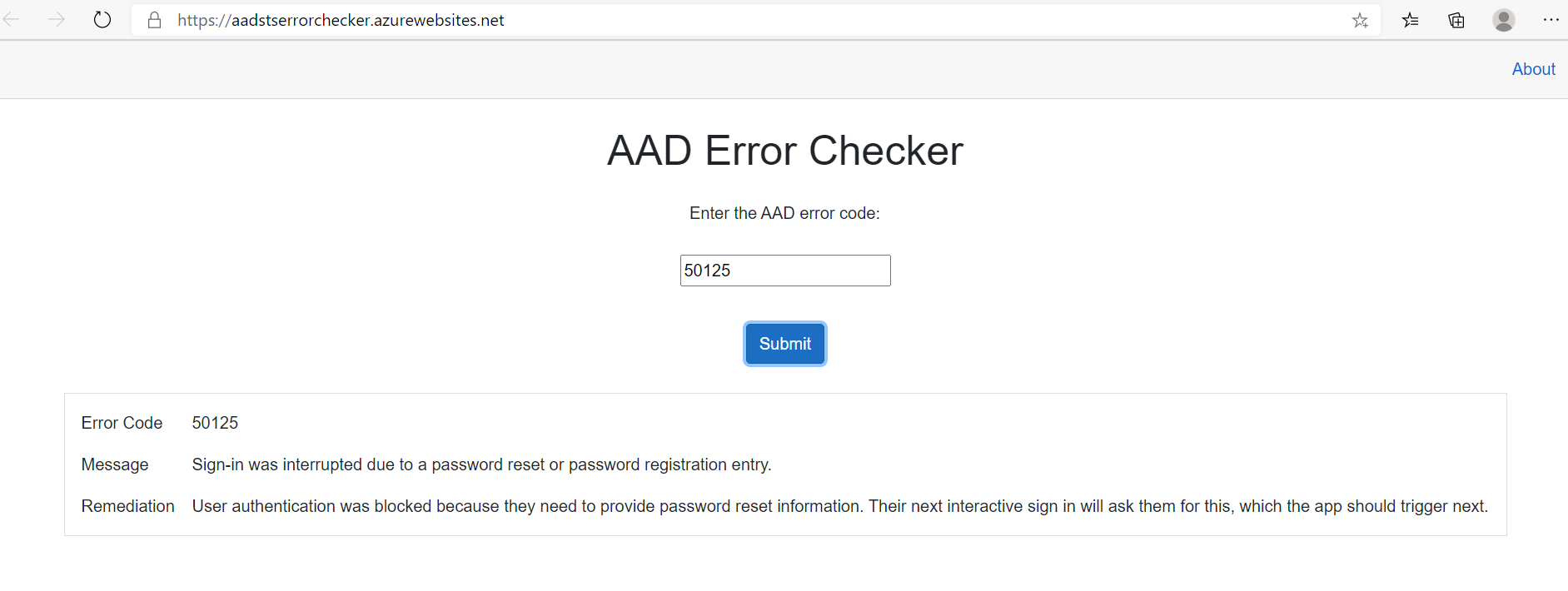
I decided to create my own Blazor application to submit my own AADSTS error codes for troubleshooting. I used the HtmlAgilityPack to pull out the response in the Blazor component to display the details of error codes. This makes it easier to parse the response html and embed the response into a razor page with a reference to ((MarkupString)[HTMLValue])
I have deployed the Blazor AADErrorChecker SPA here, using Azure App service.