Welcome to the Blazor Simple AI Single Page App, Part 6 of the Microsoft AI services journey, which now includes Microsoft Azure Open AI image generation.
This document explains the project in my GitHub repository which is available here: https://github.com/tejinderrai/public/tree/main/BlazorSimpleAI
To download the project documentation, you can download a PDF here.
Since part 5, the following changes to the project have been implemented.
Project Changes
- ImageGen.razor page has been added to the project Pages folder. This is a page hosting the image generation component and necessary code
- AzureOpenAIImageGeneration.razor component has been added to the project components folder which handles the user prompt, then displays the image viewer dialogue with the Azure Open AI generated image
- ImageViewer.razor component has been added to the project components folder. This displays the image dialogue
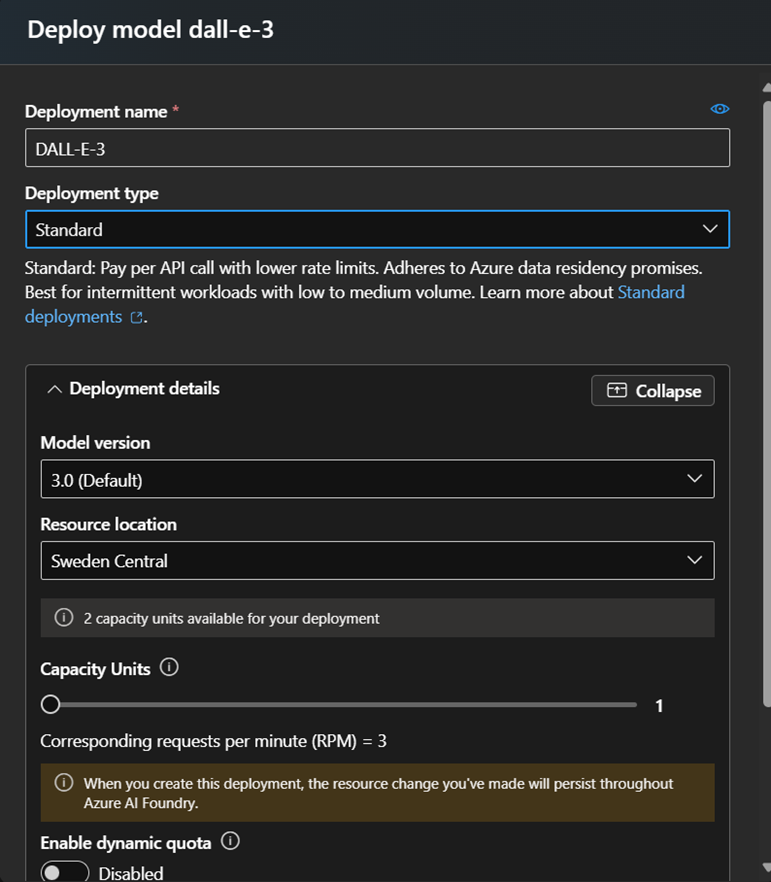
- The following configuration changes have been added to AppSettings.Json for the DALL-E deployment name
“AzureAIConfig”
{
“OpenAIDALLEEndpoint”: “[Your Azure Open AI endpoint which is hosting the DALL-E deployment]”,
“OpenAIKeyDALLECredential”: “[Your Azure Open AI key] “,
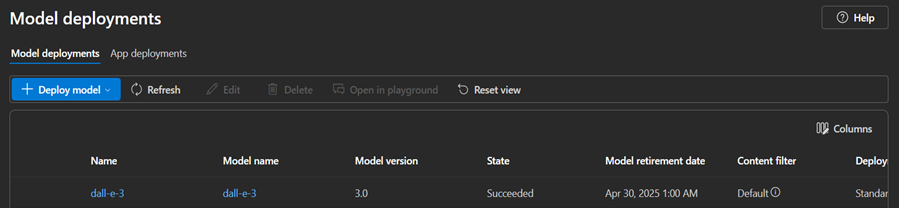
“OpenAIDALLEDeploymentName”: “[Your DALL-E deployment name]”
}
5) The following base model was added to the Open AI Service.
Components
ImageGen.razor (page)
The ImageGen.razor page is used to host the prompt for the user to generate the image. This is distinctively similar to the Open AI Chat index page, which follows a similar pattern to accept text prompts or audio recordings and then the text is passed to the child component, AzureOpenAIImageGeneration, to process the text and generate the image from the Azure Open AI service.
service.AzureOpenAIImageGeneration.razor
A component which accepts the text from the prompt and then calls the Azure Open AI service to generate the image.
ImageViewer.Razor
This component displays the output, the image, generated from the Azure Open AI service which is the template for the image dialogue box. This is called from the Image Generation child component.
The UI
I have added a Image Generation navigation link to the landing page.

Sample Questions and Responses
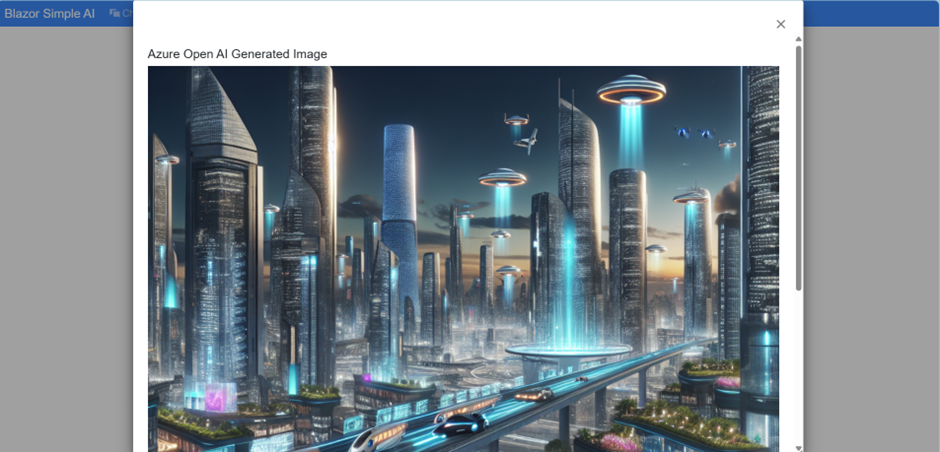
Question 1
“Draw a futuristic city”

Output for question 1:
The process takes a few seconds for the image generation to complete, so I have displayed a spinning wheel and a prompt for the user to wait for the result.

The output is displayed as follows:
Question 2
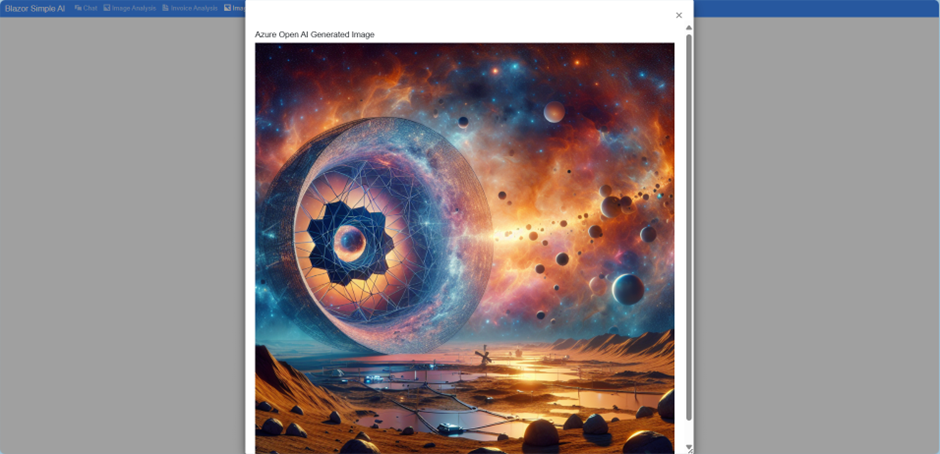
“Origins of the universe by the James Webb telescope”

The output is displayed as follows:
Question 3
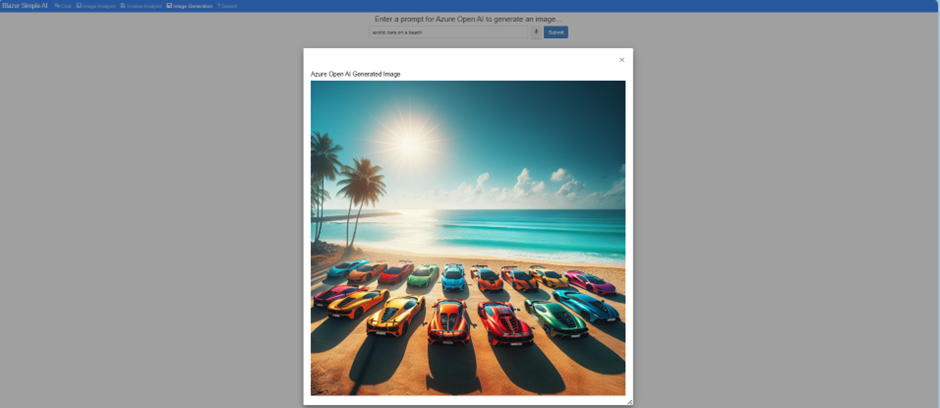
“exotic cars on a beach”

The output is displayed as follows:
That’s it!
This shows how simple it is to integrate a Blazor Web application with Azure Open AI image generation.


 Welcome to Tejinder Rai's blog, Cloud Solutions Architect