Earlier this year I created a Enterprise Integration Short Paper and included the high level architecture of integrating MCP clients with MCP servers. The Model Context Protocol was developed by Anthropic in 2024 and is now widely adopted as a standard for integration. This was donated to the Agentic AI Foundation (AAIF) under the Linux Foundation.
I have published the MCP client, developed using C#, in my github repository here.
A few weeks ago, I created a presentation on how an accounts payable team can digitally transform their processes by transforming business processes, from manual invoice processing to digital processing. With this in mind, I applied the TOGAF ADM phases to demonstrate the transformation phases, so that it was possible to see how the TOGAF ADM could be used for this scenario. I have previously implemented this in practice.
The presentation can be downloaded in the link below.
In the early hours of this morning I was thinking about projecting an image in regards to solutions and depicting how many different layers there are in a solution stack, including some dependencies on the overall solution architecture as well as the deployment and support capability required for ongoing operations. I put together the view below, a simplified high-level view of what a solution stack means for a solution, project, or just how an organisation or team may think overall about enterprise solution components.
This diagram is only based on my thoughts, not specifically related to a framework or a specific solution, hence it’s not specifically a formal approach or a solution. It’s a conceptual image of what I was thinking about in the early hours of this morning.
Reflecting on the TOGAF ADM 10th edition, I have been considering how to create an alternative view of the ADM phases. The framework is well-defined and proven, which raises the question: why change something that works effectively?
The phases of the TOGAF ADM provide a structured approach to enterprise architecture, guiding organisations through the process designing, planning, implementing, and governing effective enterprise architectures… in a nutshell.
While exploring new perspectives can be valuable, it is essential to recognise the strengths of the existing methodology. The TOGAF ADM continues to serve as a reliable foundation for architects and organizations alike. Therefore, I chose to represent a key aspect of the impact of the ADM phases, which is requirements management and how this is integral to each phase. I created the view below, perhaps more of a perspective than anything else, something useful for depicting my initial goal.
Why did I need to do this? Everyone views the same depiction, but everyone’s view and interpretation of the image, including their thoughts, can effectively be different.
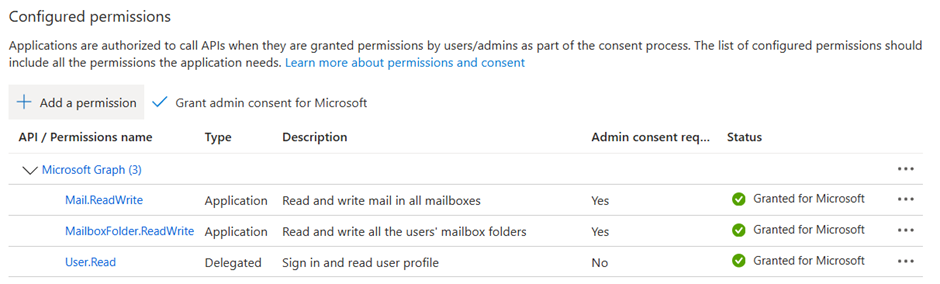
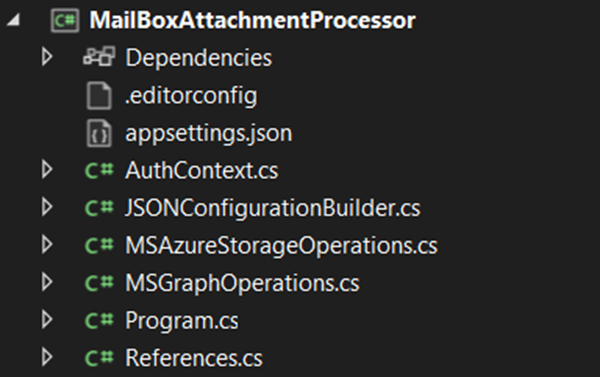
Recently, I had a requirement to enhance some of the source code the the mailbox attachment processor, to demonstrate how attachments from Exchange Online could be extracted from a mailbox, instead of using a app registration in Microsoft Entra Id with application policies and explicitly setting MIcrosoft Graph permissions, which of course are now deprecated, I’m now using a managed identity for an Azure VM specifically, to process mail attachments and place these onto file system instead of Azure blob storage. Whilst this was only for demonstration purposes, to explain the concept, I have added some coded artifacts to my GitHub repo here.
That said, Managed Identities do still create an application registration in MIcrosoft Entra Id, but you don’t have top manage the credentials by using a system assigned managed identity and by using Microsoft 365 Exchange RBAC, you essentially do not need to provide the application service principal Microsoft Graph permissions due to the permissions model.
The additional methods to utilise a managed identity are below.
In addition a new PowerShell script to register the application service principal and configure RBAC permissions for the managed identity service principal to access the associated mailbox. This requires enabling Exchange organisation customisation which is also included in the script below.
You will need to update the applicationsettings.json to add a new property called LocalAttachmentDowloadPath and enter the value of the local path you would like to download the attachments into, a local file system folder.
In the early hours of the morning, I have created a short paper on enterprise integration. This is paper B which discusses the short falls of legacy integration methods.
I have uploaded the paper so it is available publicly to download. You can download a copy here.
In the early hours of the morning, over the past few days, I have created a short paper on enterprise integration. This paper discusses the most common approaches to enterprise integration.
I have uploaded the paper so it is available publicly to download. You can download a copy here.
Whilst I am not putting aside the Blazor Simple AI project completely, as I have recently developed a document summary solution using the Microsoft Azure Open AI service for abstractive and extractive analysis of documents, I have been working on a nominal search scenario. The document summary solution will be added to the Blazor Simple AI project later this year and will be available in my GitHub repo with an associated blog post.
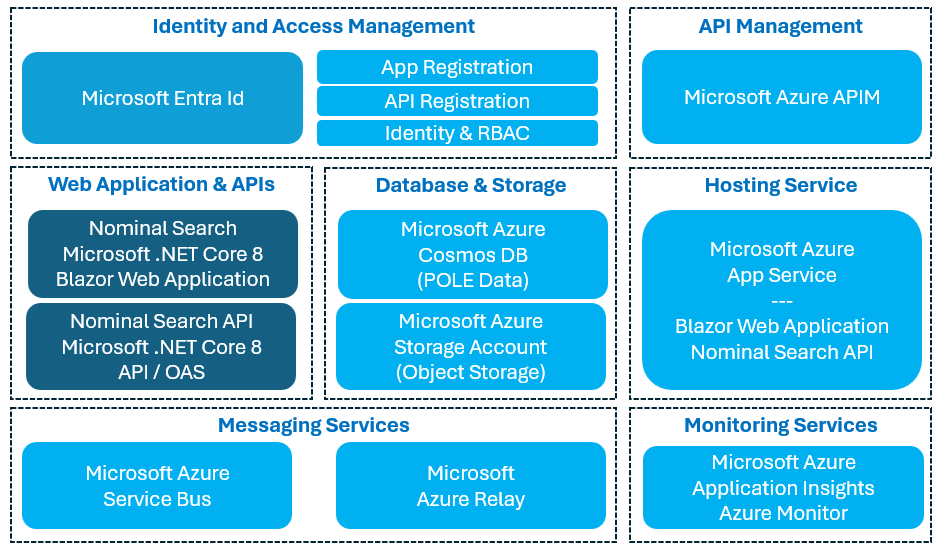
For the three different integration patterns I have been developing, using Blazor, .NET Core APIs and background processors, I have been utilising the following architecture patterns:
Request/Response – with Microsoft Azure API Management and a backend API
Web-Queue-Worker – with Microsoft Azure Service Bus Relay
Bi-Directional Synchronisation – with Microsoft Azure Service Bus
All three architecture patterns provide different capabilities for enterprise applications, the last two utilise the same Microsoft Azure Service Bus service, but are referred to as a different resource type by Microsoft. There are a number of different components utilised in the Blazor project and this will be something I will be documenting soon, now that the integration patterns have all been developed and tested.
A snippet of the architecture components are shown in the diagram below.
There is likely a chance that I will integrate this solution with my Blazor Simple AI solution, perhaps with Azure AI Search.
Welcome to the Blazor Simple AI Single Page App, Part 6 of the Microsoft AI services journey, which now includes Microsoft Azure Open AI image generation.
To download the project documentation, you can download a PDF here.
Since part 5, the following changes to the project have been implemented.
Project Changes
ImageGen.razor page has been added to the project Pages folder. This is a page hosting the image generation component and necessary code
AzureOpenAIImageGeneration.razor component has been added to the project components folder which handles the user prompt, then displays the image viewer dialogue with the Azure Open AI generated image
ImageViewer.razor component has been added to the project components folder. This displays the image dialogue
The following configuration changes have been added to AppSettings.Json for the DALL-E deployment name
“AzureAIConfig”
{
“OpenAIDALLEEndpoint”: “[Your Azure Open AI endpoint which is hosting the DALL-E deployment]”,
“OpenAIKeyDALLECredential”: “[Your Azure Open AI key] “,
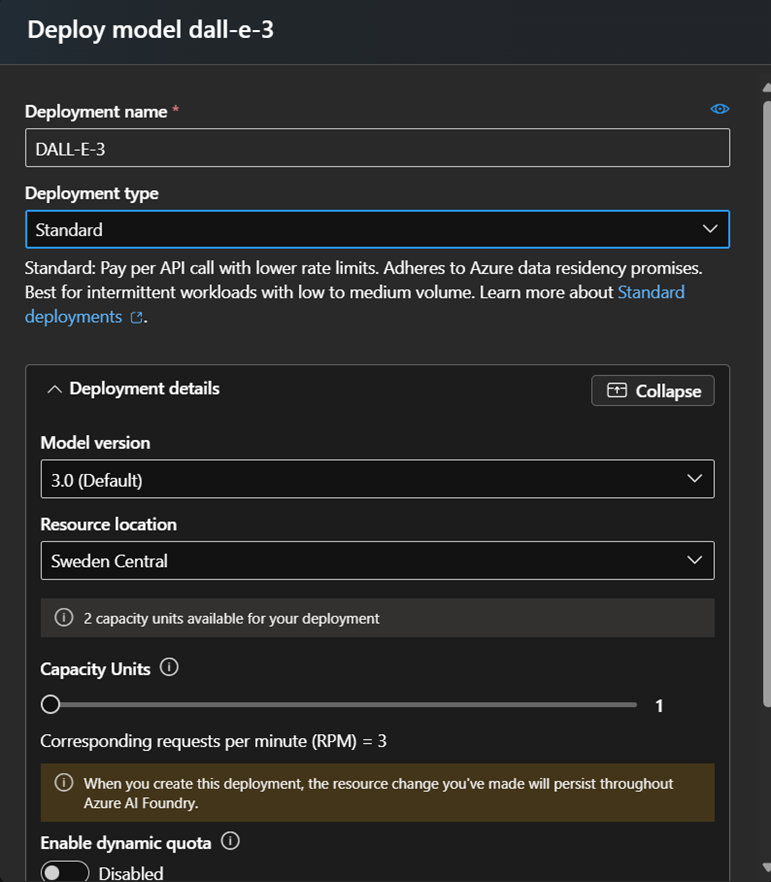
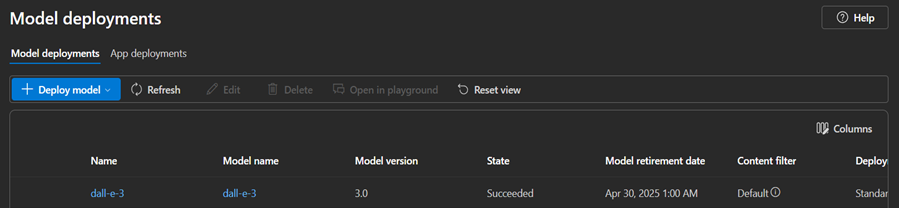
5) The following base model was added to the Open AI Service.
Components
ImageGen.razor (page)
The ImageGen.razor page is used to host the prompt for the user to generate the image. This is distinctively similar to the Open AI Chat index page, which follows a similar pattern to accept text prompts or audio recordings and then the text is passed to the child component, AzureOpenAIImageGeneration, to process the text and generate the image from the Azure Open AI service.
service.AzureOpenAIImageGeneration.razor
A component which accepts the text from the prompt and then calls the Azure Open AI service to generate the image.
ImageViewer.Razor
This component displays the output, the image, generated from the Azure Open AI service which is the template for the image dialogue box. This is called from the Image Generation child component.
The UI
I have added a Image Generation navigation link to the landing page.
Sample Questions and Responses
Question 1
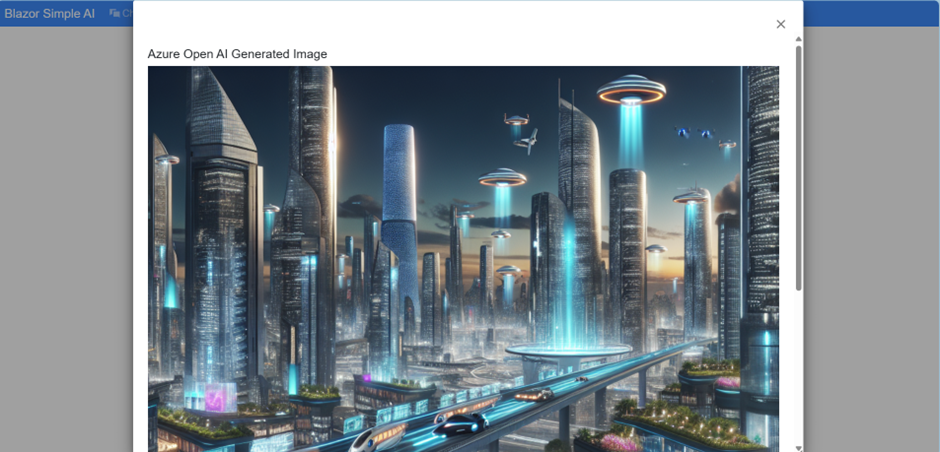
“Draw a futuristic city”
Output for question 1:
The process takes a few seconds for the image generation to complete, so I have displayed a spinning wheel and a prompt for the user to wait for the result.
The output is displayed as follows:
Question 2
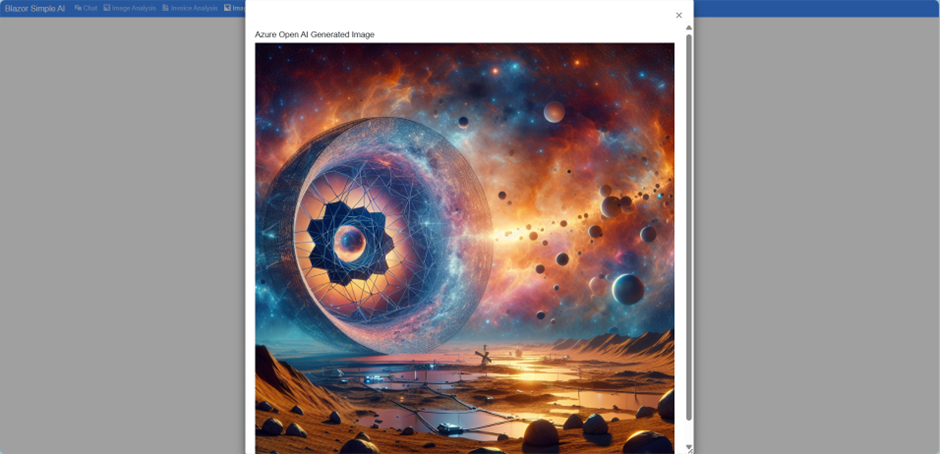
“Origins of the universe by the James Webb telescope”
The output is displayed as follows:
Question 3
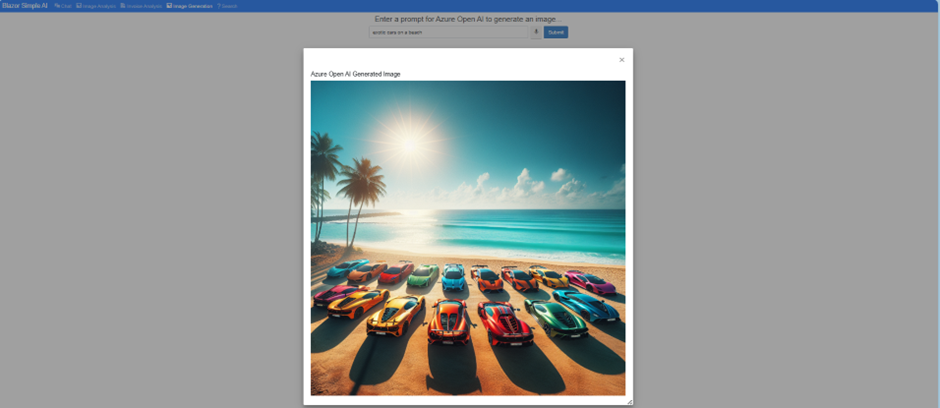
“exotic cars on a beach”
The output is displayed as follows:
That’s it!
This shows how simple it is to integrate a Blazor Web application with Azure Open AI image generation.
A .NET8 C# Application to Process Microsoft 365 Email Messages and Attachments
Introduction
Recently, I was asked how attachments from a Microsoft 365 mailbox could be automatically pushed into an Azure storage file share, so that the attachments can be made accessible to an onward process which needs to be executed on an Azure Virtual Machine. Whilst there are many ways this can be achieved; I decided to create a C# Console application to process the messages and attachments from Microsoft 365 mailbox inbox folder.
“MSEntraApplicationClientId”: “[Microsoft Entra ID Application Id]”,
“MSEntraApplicationSecret”: “[Microsoft Entra ID Application Secret]”,
“MSEntraApplicationTenantId”: “[Microsoft Entra ID Tenant Id]”
}
}
Application Runtime Process
The application process is described below.
The configuration is initialised
The messages are retrieved from the defined mailbox folder name
Each message is processed in the message collection and the emails with the matched string that are contained in the subject are processed
A console output of the message ID, received date, received from, and subject is displayed
Each attachment is processed and if the file is a file attachment, then the attachment is uploaded to the Azure file share specified in the Azure storage account connection string and file share name
The number of messages processed, and the number of attachments processed is displayed in the output of the console
Sample Output
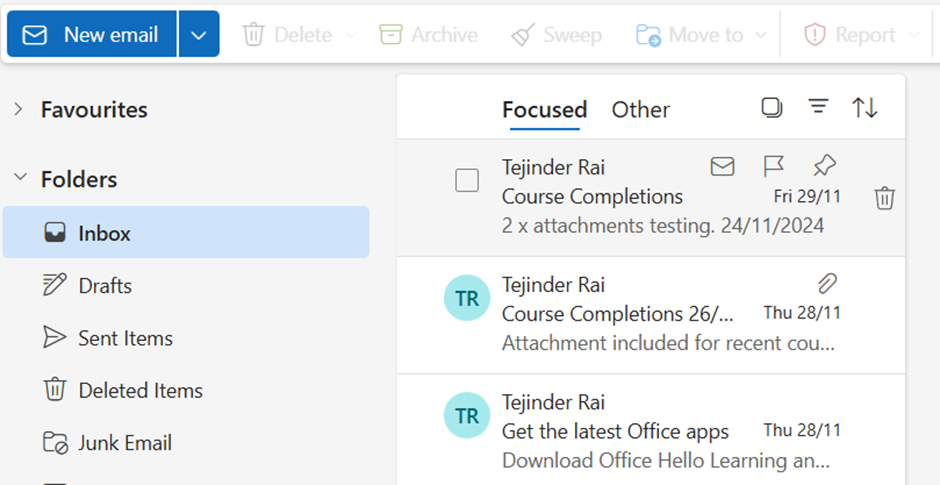
The mailbox has two messages with the subject containing the search string “course completions”.
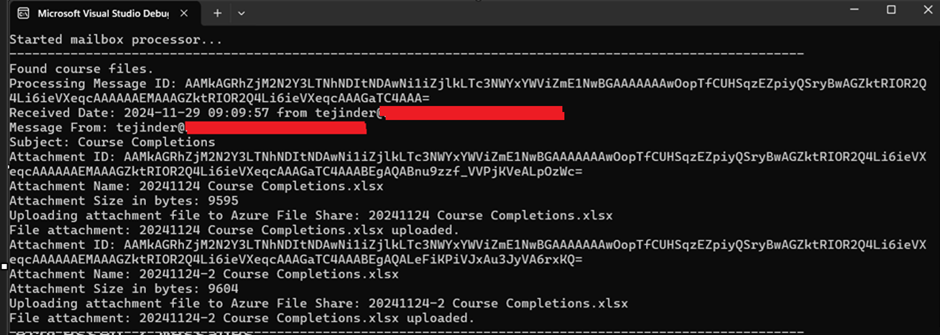
The mailbox attachment processor is executed, it displays the following output.
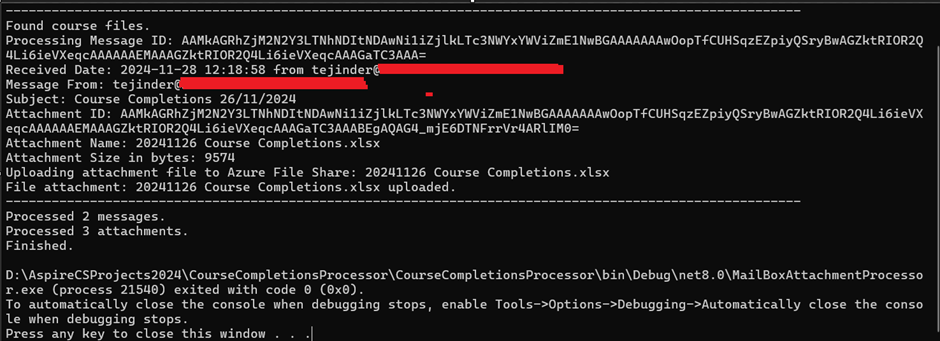
Two messages are processed, although three were seen in the previous email, but since the search string was not contained in the subject, only two messages were processed which were matched.
Two messages are processed, although three were seen in the previous email, but since the search string was not contained in the subject, only two messages were processed which were matched.
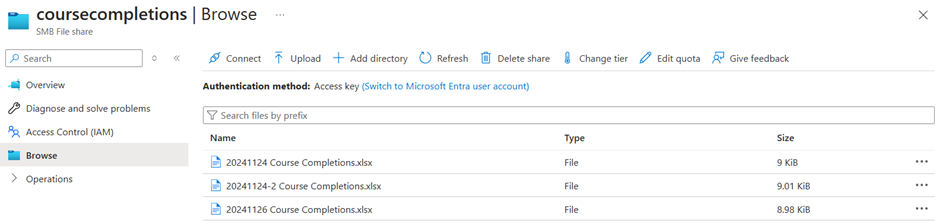
Three attachments in total were processed and uploaded to an Azure storage file share.
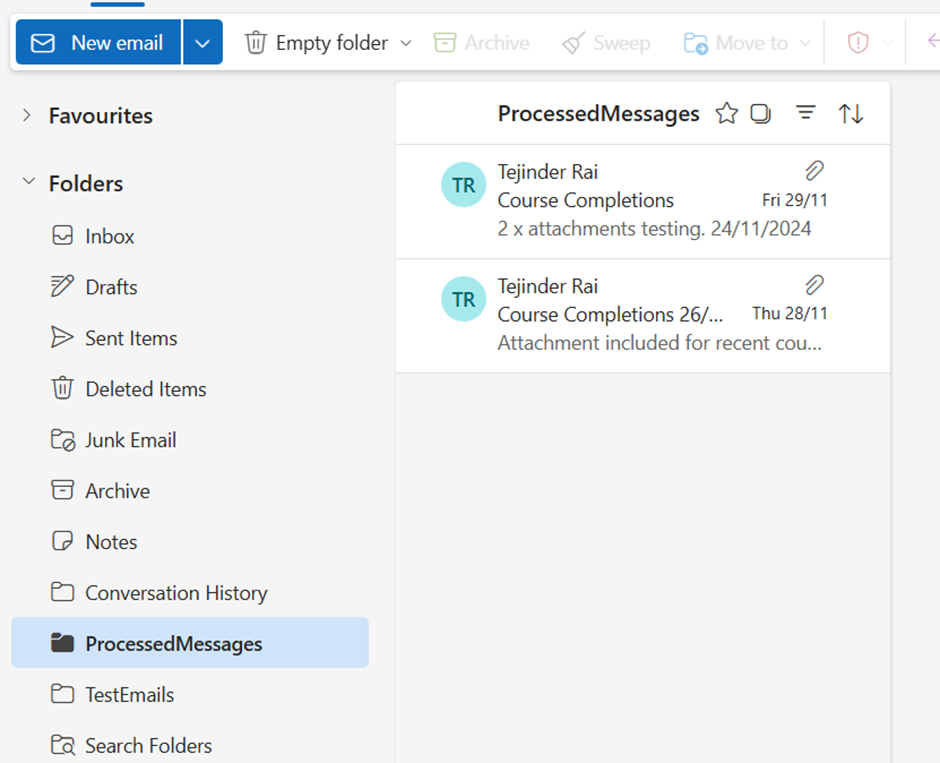
The email messages were moved to the ProcessedMessages folder, as defined in the application setting ProcessedMessagesFolderName.
When the application is executed again, the output is shown below as there are no longer any matched messages to process.
Closing Thoughts
From a development point of view, using this method provides a simple solution. Other considerations:
Store the storage account key in Azure Key Vault
Store the application secret (if used( in Azure Key Vault
The Azure resource hosting the application e.g. Function App, can have a managed identity and RBAC access can be provided to Azure Key Vault for the service principal (Azure Key Vault access policies are now deprecated)
Environment settings can be stored in the hosting environment configuration rather than in the appsettings.json file.